
Manual / Watch Face Complications
Watch Face Complications
A complication is one of the small readouts you can add to a watch face. Wrist Dope ships seven of them on Apple Watch and six on Wear OS, so a glance at your wrist answers the question you actually have between stages: what am I holding at this distance, and has the air changed. The biggest one is a mini range card, which on Wear OS is a tile. The smallest is your load and zero on a single line.
Seven or six
Seven on Apple Watch. Six on Wear OS, plus a Range Card tile.
Added on the watch
Touch and hold the watch face and edit it. The steps differ by watch.
Pro required
Without Pro they show the upgrade instead of dope. A free 7-day trial is offered.
First
Add one to your watch face
Complications are added by watchOS, not by Wrist Dope, so the flow is Apple's. Installing Wrist Dope on the watch is all it takes to make the seven available. Steps below match Apple's watchOS 26 instructions, checked against Apple's own guide.
- With the watch face showing, touch and hold the display, then tap
Edit. - Swipe left all the way to the end. If the face offers complications, they are on the last screen, drawn as empty outlines.
- Tap a slot to select it, then turn the Digital Crown (or scroll the list that appears) to Wrist Dope, and pick one of the seven.
- Press the Digital Crown to save, then tap the face to switch to it.
Not every face has every slot shape. The Range Card needs a face with a wide rectangular slot, and Modular Ultra and Infograph Modular both have one. If a complication you want is missing from the list, the slot you tapped is the wrong shape for it.
The seven
What each one shows
Range Card
Wide rectangular slot
A mini dope table for the active load: distance, elevation, and both wind columns. The row nearest your dialed distance is brighter and bolder.
Tap it: opens Live Fire.
Hold
Round or corner slot
One distance, with the elevation hold and an up or down arrow, and the wind hold with a left or right arrow underneath.
Tap it: opens Live Fire.
Elevation Hold
Round or corner slot
The elevation hold for one distance and nothing else, with the unit spelled out as MIL or MOA.
Tap it: opens Live Fire.
Wind Hold
Round or corner slot
The wind hold for one distance, in cyan, with the wind speed it was solved at. Pairs with Elevation Hold in the opposite corner.
Tap it: opens Wind.
Target
Round or corner slot
Your locked target: its name, the cardinal direction, the bearing in degrees, and the shot angle when it is a degree or more off flat.
Tap it: opens Target.
Density Altitude
Round slot, or the line above the time
Density altitude from your last conditions: the one number that tells you whether yesterday's dope still holds.
Tap it: opens Environment.
Active Load
The line above the time
Your active load and its zero distance, on one line.
Tap it: opens Wrist Dope.
Colour is consistent across all of them: distances in your accent colour, elevation in white, wind in cyan. If you have themed the app, the complications pick up the same hue.
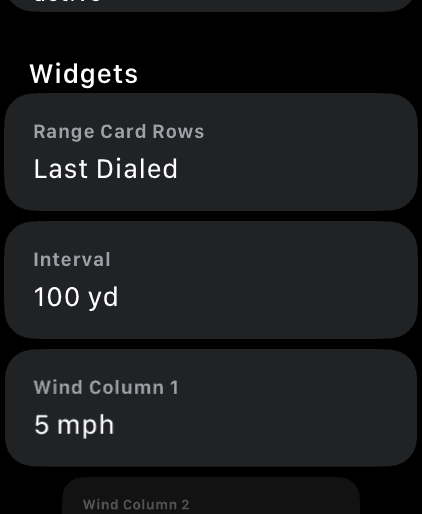
Settings → Widgets. Everything the complications render is chosen here.
Step 1
Choose the rows and the interval
On the watch, swipe to SETTINGS and scroll to the Widgets section. The first two rows decide which distances the Range Card shows:
- Range Card Rows:
Last Dialed,SpreadorCustom. Last Dialed is the default. - Interval: the spacing between rows, 10, 25, 50, 100 or 200 yards. It defaults to 100, and it is deliberately separate from the in-app range card, which is usually much finer.
Choose Custom and eight more rows appear below, one per pinned distance. They start at 100, 200, 300, 400, 500, 600, 800 and 1000.
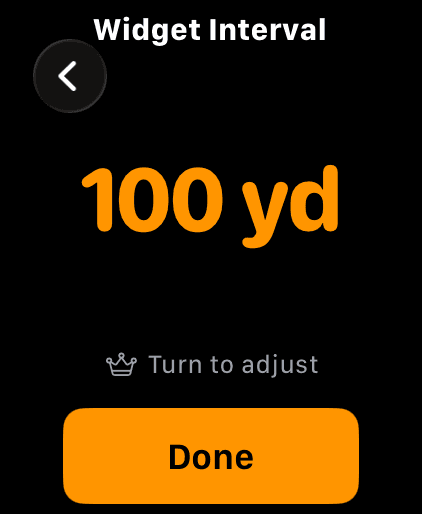
Every Widgets row opens the same picker: turn the crown, then tap Done.
Step 2
Turn the crown, tap Done
Tapping any row in the Widgets section opens a full-screen picker. Turn the Digital Crown to move through the values, then tap Done. The change takes effect within a couple of seconds, while the app is still open.
Values in these pickers follow your unit settings, so a metric shooter sets metres and km/h rather than yards and mph.
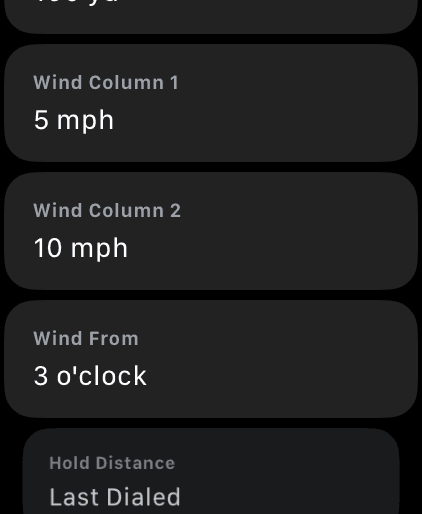
Two reference winds, the clock they blow from, and which distance the hold complications use.
Step 3
Set the wind columns and the hold distance
- Wind Column 1 and Wind Column 2: the two reference speeds the Range Card solves, 5 and 10 mph out of the box. They become the
W5andW10column headers. - Wind From: the clock position those reference winds blow from, relative to the target. 3 o'clock and 9 o'clock are full-value crosswinds; 12 and 6 are a head and tail wind.
- Hold Distance: the one distance the Hold, Elevation Hold and Wind Hold complications solve. Leave it on
Last Dialedand they follow whatever you dial in Live Fire; set a number and they stay pinned there.
Wind Hold has one extra habit worth knowing: when you have called a real wind in the app, it shows the hold for that wind, with the speed and clock on its label, instead of the Wind Column 1 reference.
Under the hood
How the eight rows get picked
The Range Card aims for eight distances and renders them as two columns of four. Which eight depends on the strategy you chose:
- Last Dialed: a sliding window of eight distances at your interval, centred on the range you last dialed in Live Fire, snapped to that interval. Dial 500 with a 100-yard interval and you get 100 through 800 with 500 in the middle. Near the ends of your range-card limits the window slides rather than shrinks, so you always get eight rows where the trajectory allows.
- Spread: eight distances spaced evenly between the Min Range and Max Range you set for the range card, snapped to the interval.
- Custom: exactly the distances you pinned, sorted low to high with duplicates dropped.
Small slots get fewer rows, not smaller type past the point of legibility. On a tight face the second wind column goes first, then rows come off, and the window stays centred on the distance you dialed, so the row you care about is never the one that gets trimmed. Distances where the solver has no answer are dropped rather than printed as a fake 0.0, which is why the table sometimes ends short of your maximum.
Min Range, Max Range and the in-app row spacing live in the Range Card and Dope Card settings. Calling the wind and locking a target (what the Wind Hold and Target complications read) is covered in Target and Wind.
Be honest about this one
When they refresh, and when they don't
Complications are not live. They show a snapshot the watch app computed and handed to watchOS. There is no timer and no background poll; the app never wakes itself up to re-solve on the face.
- They repaint while the app is open. Wrist Dope re-checks every couple of seconds and publishes when something the face actually shows has changed: the active load or an edit to it, the conditions, the range you dialed, the wind or target you set, your units or theme, any Widgets setting, or your Pro status. Nothing changed means nothing is rewritten.
- A Siri command refreshes them too. Setting the wind or asking for a hold by voice republishes the snapshot without opening the app.
- Closed app, frozen numbers. Walk from the truck to a 400-foot-higher firing point with the app closed and the face still shows the old air. Open Wrist Dope and it catches up in a second or two.
So the Range Card tells you when it has gone quiet. Forty-five minutes after the numbers were computed it adds a small clock icon and the time of the solve to its header. Before that it shows no timestamp at all, because a second clock next to the watch clock is just clutter. That mark is scheduled in advance, so it appears on time even with the app closed. The other six complications carry no stale mark, so treat the Range Card as your canary.
Access
Live dope needs Pro
All seven complications render real numbers on Wrist Dope Pro, including an active free trial and a legacy paid purchase. On the free tier, or once a trial has ended, each one shows a lock and the words Wrist Dope Pro in place of your dope. Tapping the lock opens the upgrade card on the watch, where the free 7-day trial starts.
Two details are worth knowing. In the second or two after launch while your purchase is still being verified, the complications keep showing live dope rather than flashing a lock at someone who has already paid. And buying Pro or starting a trial on the watch repaints them straight away. You do not have to re-add anything to the face.
Complication showing the wrong thing?
- “Open Wrist Dope to set a load.” There is no active load to solve. Open the app, go to GUNS and make a rifle and load active. Tapping the complication takes you there.
- A crosshair icon and “Dial”, “ELEV” or “WIND”. The hold complications have no distance yet. Dial a range on Live Fire once, or pin one under
Hold Distanceso they never go blank. - A crosshair icon and “Aim”. Target has nothing captured. Point and lock a target on the TARGET page and it fills in.
- A lock instead of numbers. Pro is not active on this watch, or a trial has ended. Tap the complication to see where you stand.
- Numbers look stale. They probably are (see above). Open the app for a couple of seconds and let it republish. If the Range Card is showing a clock icon and a time, that is the app telling you the same thing.
- Wrong distances, or fewer rows than you expected. Check
Range Card RowsandIntervalunder Settings → Widgets. On a small face the layout drops the second wind column and then rows to keep the type readable, and any distance the solver cannot reach is left out.
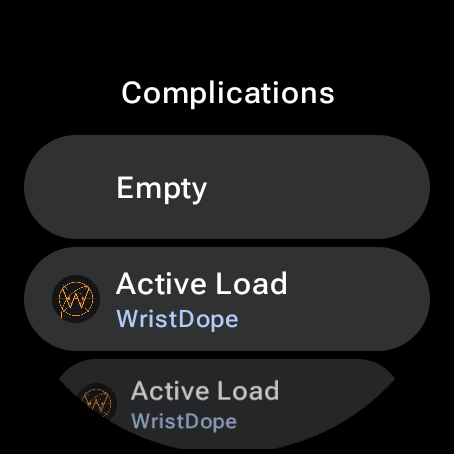
The face editor list. Wrist Dope shows up as WristDope.
First
Add one to your watch face
Complications are added by Wear OS, not by Wrist Dope, so the flow is the watch's. Installing Wrist Dope on the watch is all it takes to make the six available. Google's steps, from its Wear OS guide:
- Touch and hold the watch face, then tap
Settings. On some watches you hold until aCustomizescreen comes up. - Tap
Data, then tap the slot you want to change. - Pick one of the six Wrist Dope sources. The list spells the app
WristDope, as one word.
Watch makers word these screens a little differently. All six fit a short text slot, and Target and Active Load can also fill a long one, where they have room to say more. If Wrist Dope is missing from a slot's list, that slot takes a kind of data none of the six provide.
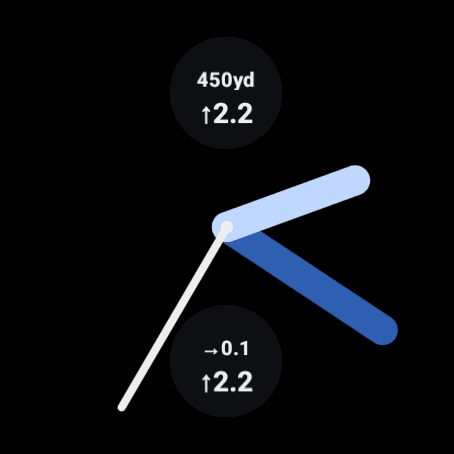
Elevation on top, Hold below, on a stock Wear OS face.
The six
What each one shows
Hold
Short text slot
Both holds at one distance: the wind hold over the elevation hold, each with its arrow.
Tap it: opens Live Fire.
Elevation
Short text slot
The elevation hold and the distance it was solved at.
Tap it: opens Live Fire.
Wind Hold
Short text slot
The wind hold and the wind speed it was solved at. With a real wind called in the app it uses that wind; otherwise it shows the Wind Column 1 reference.
Tap it: opens Wind.
Target
Short or long text slot
Your target's bearing and the shot angle. A long slot adds the target's name.
Tap it: opens Target.
Density Alt
Short text slot
Density altitude from your last conditions. It works with no active load, because the air does not depend on a rifle.
Tap it: opens ENV.
Active Load
Short or long text slot
Your active load's name. A long slot adds its zero.
Tap it: opens Wrist Dope, on the page it was last on.
A value the app does not have yet shows a dash, never a zero.
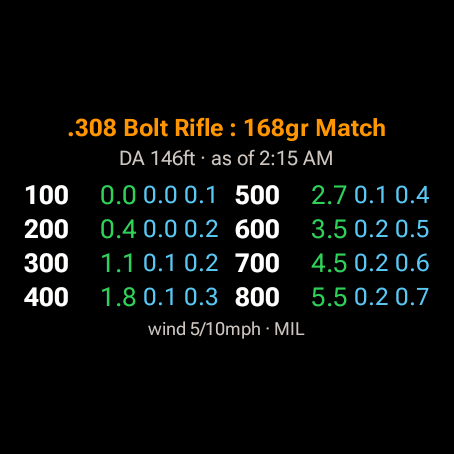
The Range Card tile: eight ranges, elevation and both reference winds.
The tile
On Wear OS the Range Card is a tile
Wear OS complications are a fixed set of small slots, and none of them can draw eight ranges in two columns. So the Range Card lives in your tiles, the screens you swipe to from the watch face. Google's steps, from its tiles guide:
- From the watch face, swipe from right to left.
- Touch and hold the screen.
- Swipe left to the last item, tap
Add tile(on some watches,Add widget), and pickRange Card.
The watch's companion app on your phone can add it too, under Tiles.
It shows your dope at eight ranges for the active load: elevation and both wind columns, with the range you last dialed in orange. On a small watch the second wind column is the first thing to go. The header gives the density altitude and the time the numbers were solved, and the footer the two reference winds and the unit. Tap the tile to open the Range Card page.
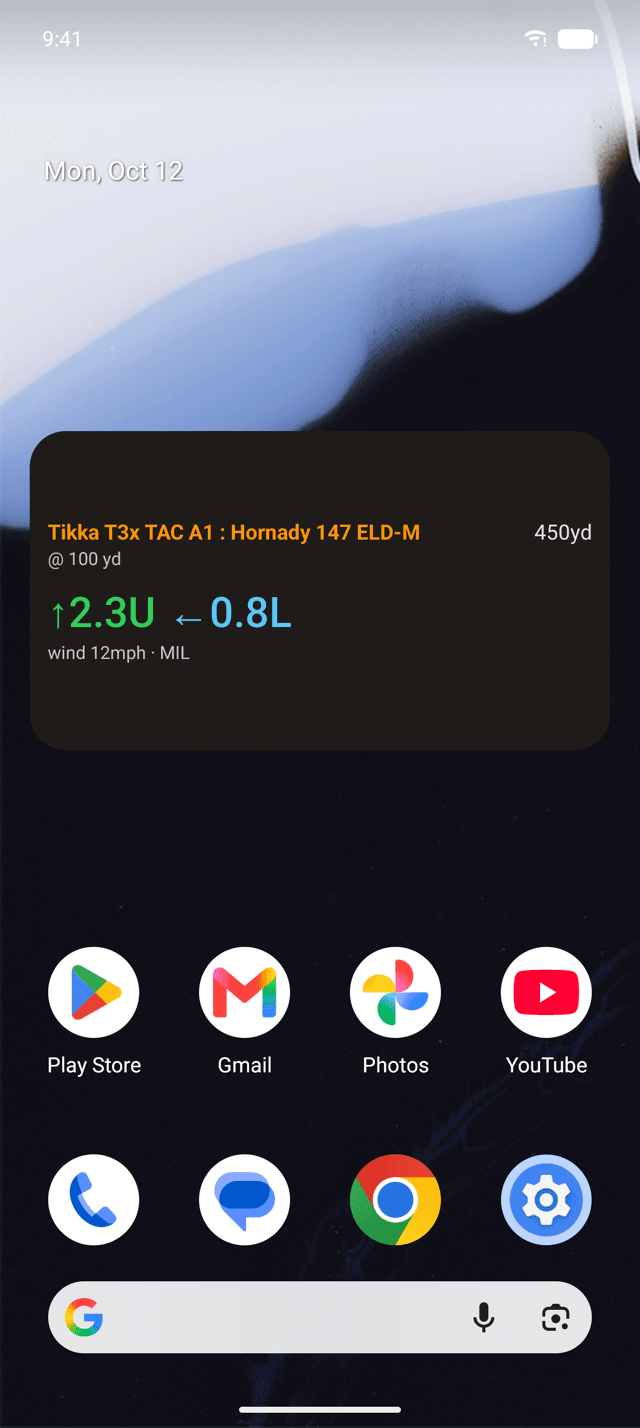
The Dope widget: the active load and the hold at the range you last dialed.
On the phone
A home-screen widget
Android phones get a home-screen widget called Dope: your active load and the hold at the range you last dialed, with the wind speed it was solved at. Touch and hold an empty spot on the home screen, open the widgets list, find WristDope (the launcher spells it as one word) and drag Dope where you want it. It asks for a space four cells wide and two high, and it resizes. Tap it to open the DOPE page.
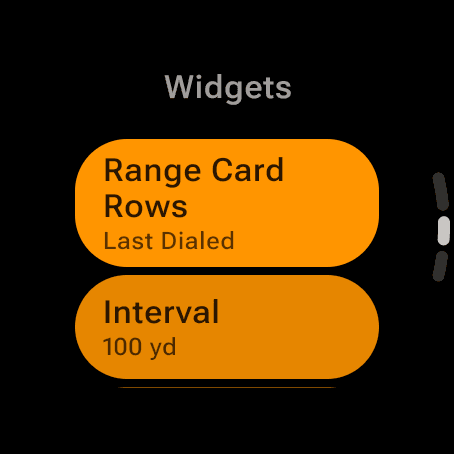
Settings, Widgets. Everything the tile and the complications show is set here.
Settings
Choose the rows, the winds and the hold distance
On the watch, open Settings and scroll to Widgets. These rows decide what the tile and the complications show. Tap a row, turn the bezel or crown to the value, then tap Confirm. Values follow your unit settings.
- Range Card Rows:
Last Dialed(the default),SpreadorCustom. Last Dialed is a window of eight ranges centred on the one you last dialed. Spread spaces eight evenly between your range card's min and max. Custom is the eight you pin. - Interval: the spacing between rows, 10, 25, 50, 100 or 200 yards. It starts at 100.
- Wind Column 1 and Wind Column 2: the two reference winds the tile solves, 5 and 10 mph out of the box.
- Wind From: the clock those reference winds blow from. It starts at 3 o’clock, a full-value crosswind.
- Hold Distance: the one distance the Hold, Elevation and Wind Hold complications solve. Out of the box the row reads 0, which means they follow the range you last dialed. Pick a distance and they stay pinned there; the picker has no option to go back to following the dial.
- Range 1 to Range 8 appear when Range Card Rows is Custom. They start at 100, 200, 300, 400, 500, 600, 800 and 1000.
Be honest about this one
When they refresh, and when they don't
None of these are live. They show a snapshot the app computed, and nothing polls on a timer, so a closed app means frozen numbers. Open Wrist Dope and it catches up.
Wear OS also asks apps to update complications no more than about every five minutes. Wrist Dope sends the first change straight to the face and batches anything inside the next five minutes into one update at the end of the window. The tile and the phone widget redraw with every new snapshot.
Forty-five minutes after the numbers were solved, the tile turns its time amber and adds stale, the same 45 minutes Apple Watch uses. Treat the tile as your canary.
Access
Live dope needs Pro
All six complications, the tile and the widget show real numbers on the one-time Pro upgrade, including a free trial. On the free tier the complications say Pro where the dope would be, and the tile and the widget say it is a Pro feature. Tap a complication and it opens the watch's Settings, where Wrist Dope Pro sits at the top with the upgrade and restore buttons.
Complication showing the wrong thing?
- “No load” on the face. There is no active load to solve. Tap it and it opens GUNS; make a rifle and load active.
- “Pro” instead of numbers. Pro is not active on this watch, or a trial has ended. Tap it to see where you stand.
- A dash instead of a hold. The app has no value for it yet: no range dialed, or no target locked for Target. Dial a range on Live Fire, or lock a target, and it fills in.
- The face lags behind the app. That is the five-minute pacing. The first change goes through at once; the rest arrive at the end of the window. The tile is not paced.
- Numbers look stale. They probably are. Open the app for a moment and let it republish. If the tile says stale, it is telling you the same thing.
- Hold Distance reads 0. That is the default, and it means the hold complications follow the range you last dialed.
- Wrong distances on the tile. Check Range Card Rows and Interval under Settings, Widgets. On a small watch the second wind column drops off first.
Still stuck? support@wristdope.com