
Manual / Scan Ammo
Scan Ammo
Setting up a load means finding a bullet weight, a ballistic coefficient and a muzzle velocity, and typing all three in correctly. For factory ammunition, the barcode on the box already knows them. Point the phone at it and the load builds itself.
Phone only
No camera on the watch. What you scan syncs across.
Works offline
The catalog is bundled in the app, not fetched.
Pro required
Part of Wrist Dope Pro. A free 7-day trial is offered in the app.
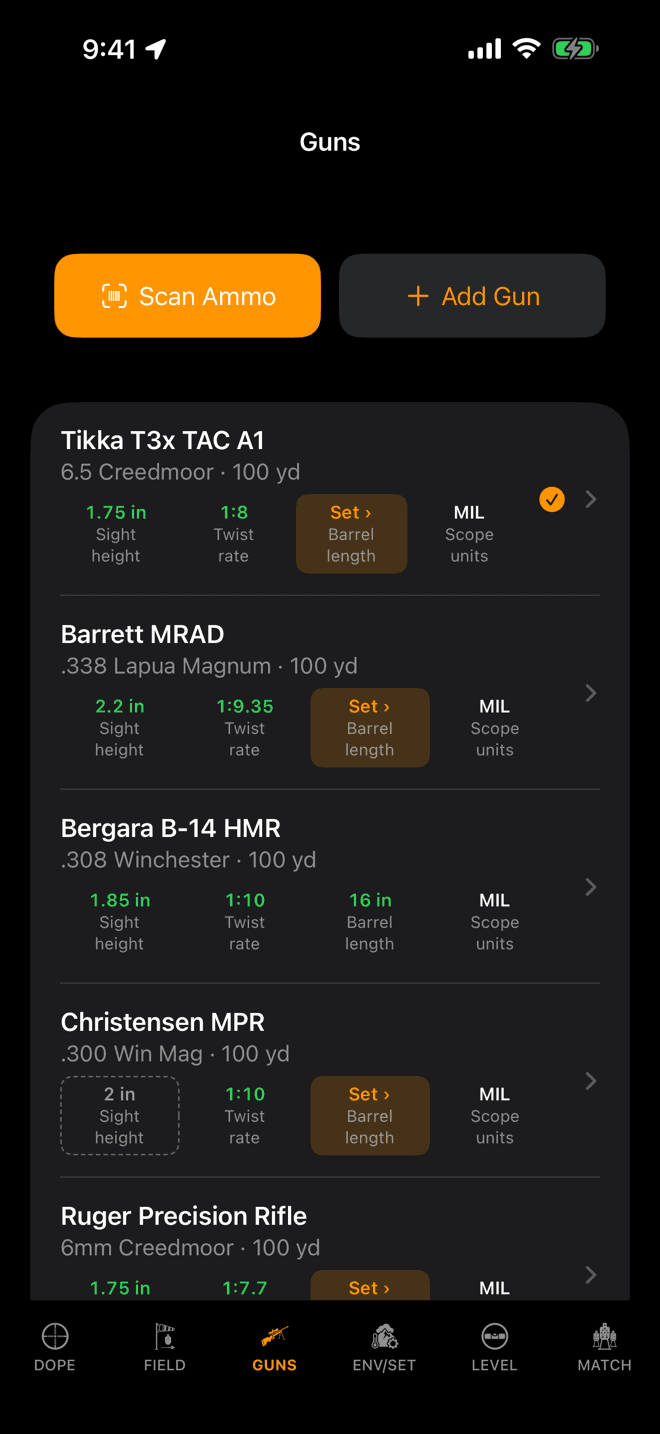
Scan Ammo sits at the top of the Guns tab, next to Add Gun. Both are one tap from the list.
Step 1
Open the scanner
Go to the GUNS tab on iPhone and tap Scan Ammo. With no rifles set up yet the empty state offers the same thing as Scan Ammo Box, because scanning a box is the fastest way into the app from nothing at all.
Scanning is iPhone only, because there is no camera on the watch. Anything it creates syncs across to the watch the same as a load you typed.
The first scan asks for camera access. Scanning is part of Wrist Dope Pro; on the free tier the button opens the upgrade card instead.
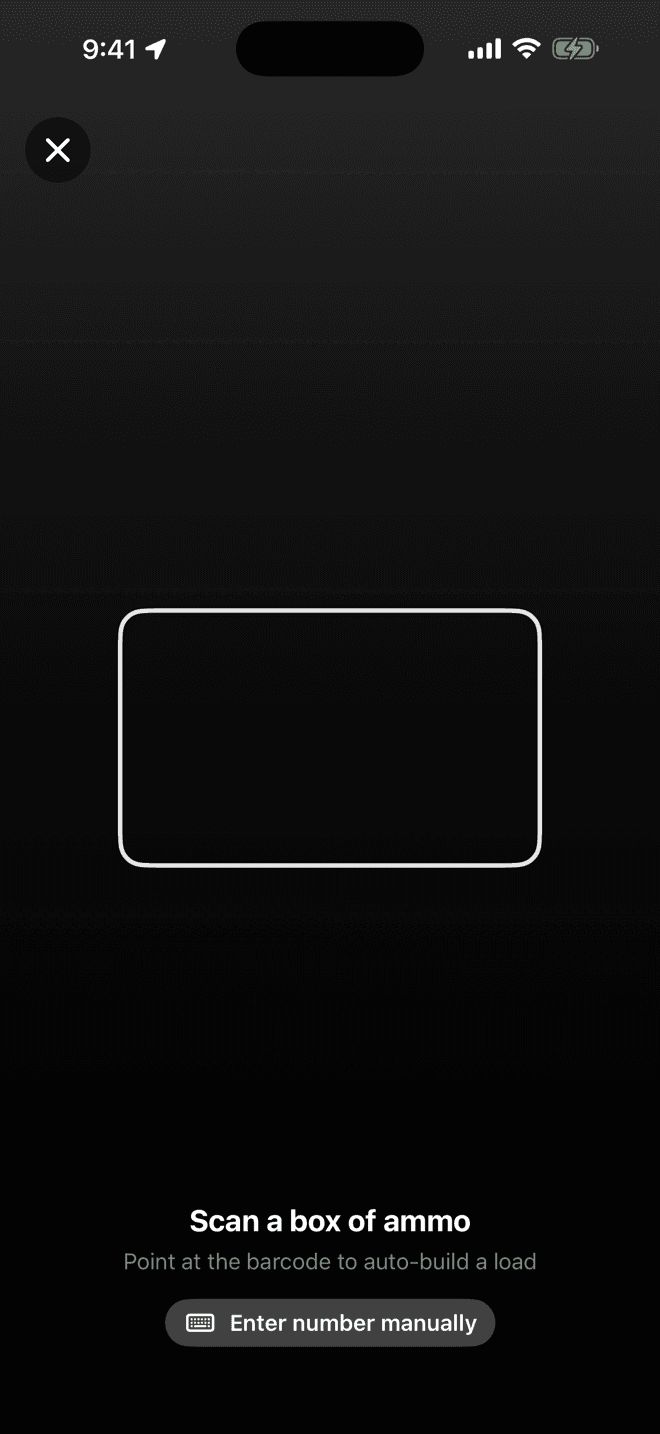
Line the box up inside the frame. If the barcode is scuffed, type the digits under it instead.
Step 2
Point it at the barcode
Hold the UPC on the end of the box inside the frame. It reads in a moment and goes straight to the result. There is no shutter button to press.
Scuffed, torn, or already thrown away? Enter number manually takes the digits printed under the bars and looks up exactly the same record.
The lookup is offline. The catalog is bundled inside the app, covering thousands of factory loads from the major manufacturers, so a scan works the same in a basement gun shop with no signal as it does at home.
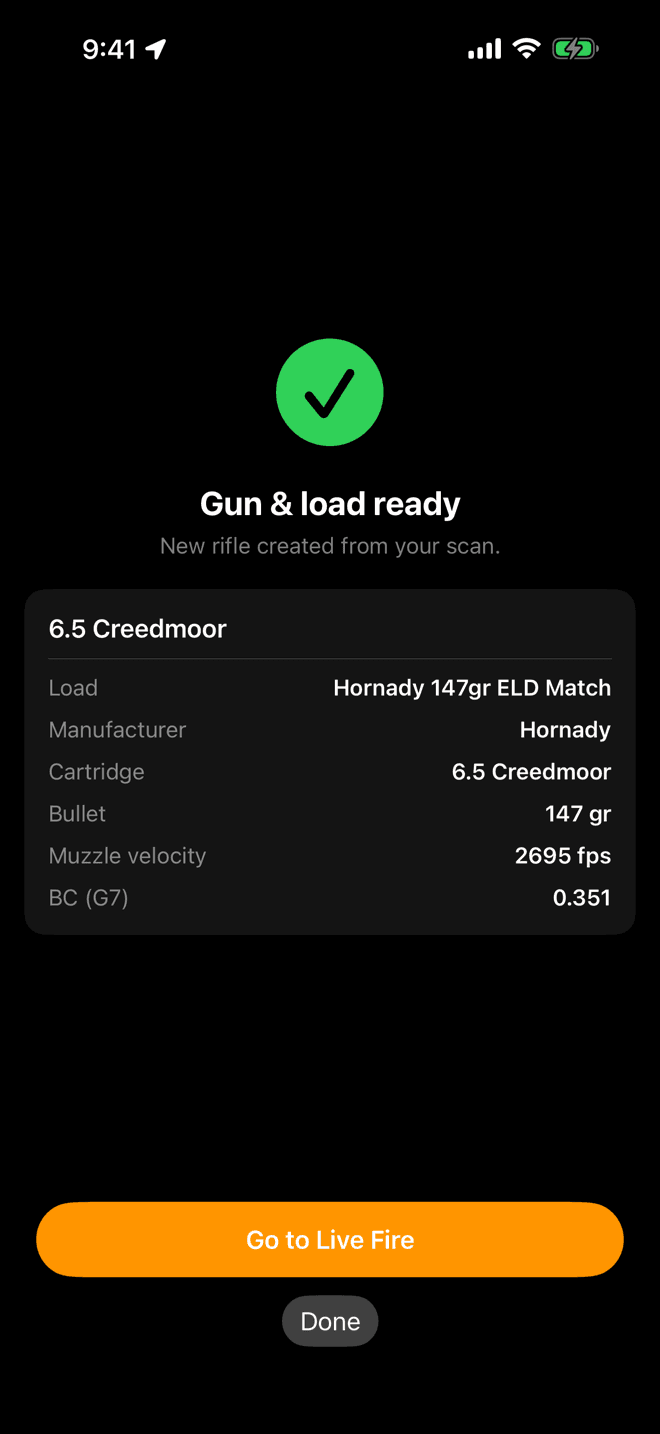
Everything the box publishes, laid out before anything is saved. Go to Live Fire makes it the active load.
Step 3
Check what it built, then shoot it
The result names what it found and what it did with it:
Gun & load ready: you had no rifle in that cartridge, so it created one along with the load.Load added: it went onto a rifle you already have.Load updated: an existing load was reset to the published factory values, which only happens after you say so.
The spec block is the ballistics: bullet weight, muzzle velocity, and the ballistic coefficient with its drag model named. That is G7 where the manufacturer publishes one, G1 otherwise. The new load is already the active one by the time you see this, so Go to Live Fire simply takes you to the dope.
A scan is a starting point, not a truth. The velocity on the box came off the manufacturer's test barrel, not out of yours. Chronograph it when you can and correct the number in the load editor.
The questions it asks you
A scan never silently overwrites your work. Where the answer is genuinely yours to give, it stops and asks:
- “Which rifle?”: you own more than one in that cartridge, so it asks where the load belongs rather than guessing.
- “Different cartridge”: the box does not match the rifle you scanned from. The default button routes it to the right rifle; the other one adds it here anyway, for the times you know better than the label.
- “You've customized this load” : you have already trued the velocity or the BC on this one. Keep yours, or reset it to the published values. Nothing changes until you pick.
Scan didn't work?
- “Not in the catalog yet.” The barcode read fine, but that product isn't in the bundled data. Nothing is wrong with your phone. Add the load by hand in the Guns tab, and send us the UPC at support@wristdope.com so the next release covers it.
- “Not enough data.” The product is known, but the manufacturer doesn't publish a velocity or a ballistic coefficient for it, and Wrist Dope will not invent either. Enter what you know by hand.
- Nothing happens at the frame. Poor light, a curved or shrink-wrapped box, or a barcode too close to the lens. Back off a few inches and steady it, or type the number.
- Handloads. There is no barcode to read, so there is nothing to scan. Build those in the load editor. Guns and Loads walks through every field.
- Air rifles. Pellet and slug tins aren't in the catalog yet. Airgun loads are fully supported. They are just entered by hand.
After the scan: Guns and Loads covers correcting what the scan filled in, Range Card and Dope Card turns the new load into a table you can print, and Target and Wind is the pair of calls that finish the solution.
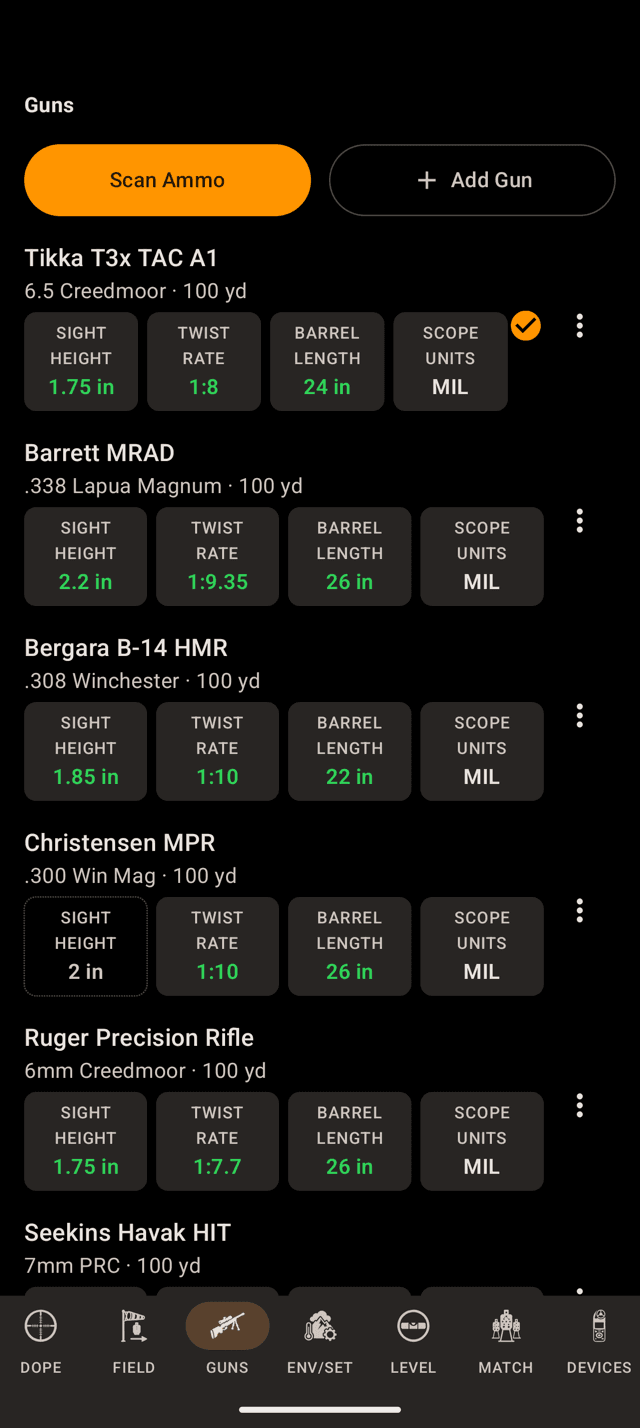
Scan Ammo sits at the top of the GUNS page, next to Add Gun. Each rifle's page has one too.
Step 1
Open the scanner
Go to the GUNS page on the phone and tap Scan Ammo. Each rifle's page has the same button, which adds the load straight onto that rifle. With no rifles set up yet, the empty state offers Scan Ammo Box, because scanning a box is the fastest way into the app from nothing at all.
Scanning is on the phone only. The watch has no scanner, and anything a scan creates syncs to the watch the same as a load you typed.
The first scan asks for camera access. Scanning is part of Wrist Dope Pro, so on the free tier the button opens the upgrade card instead.
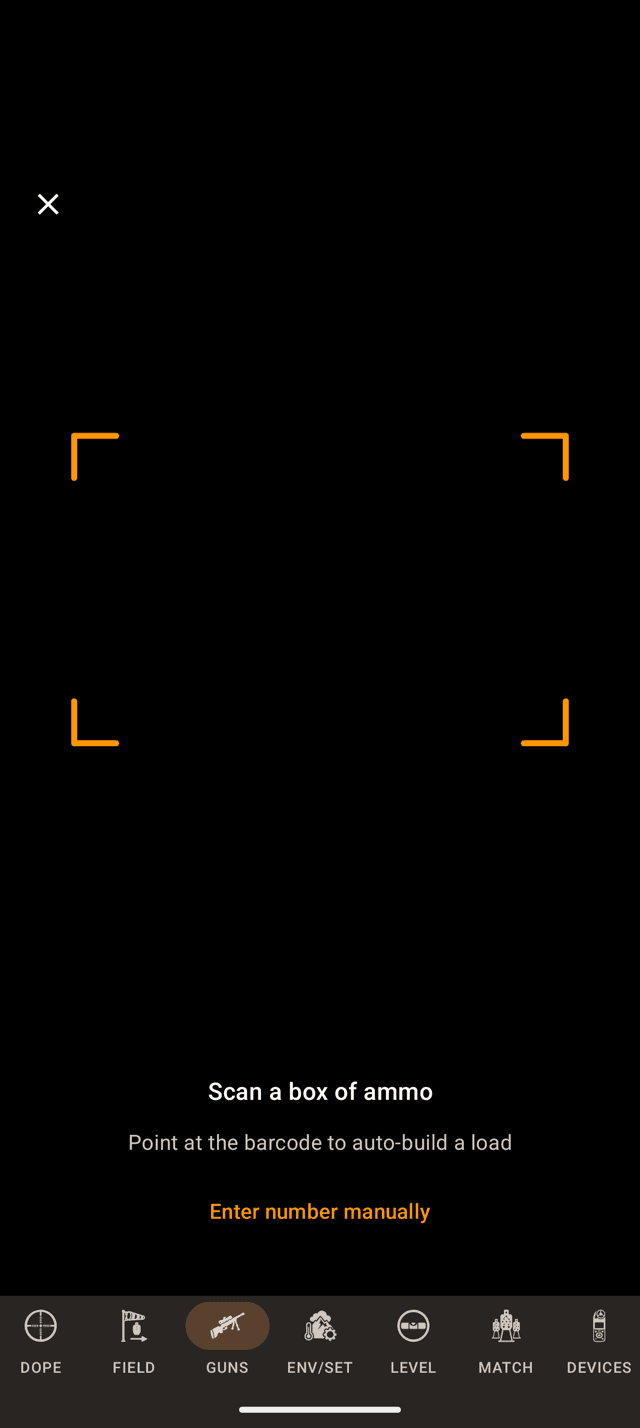
Line the box up inside the frame. If the barcode is scuffed, type the digits under it instead.
Step 2
Point it at the barcode
Hold the UPC on the end of the box inside the frame. A caption under the frame coaches you (Move a little closer., Hold steady.), and the frame turns green on Got it. before it goes straight to the result. There is no shutter button to press. In a dark shop, the light button turns on the phone's torch.
Scuffed, torn, or already thrown away? Enter number manually takes the digits printed under the bars and Look Up finds exactly the same record.
The lookup is offline. The catalog is bundled inside the app, covering thousands of factory loads from the major manufacturers, so a scan works the same in a basement gun shop with no signal as it does at home.
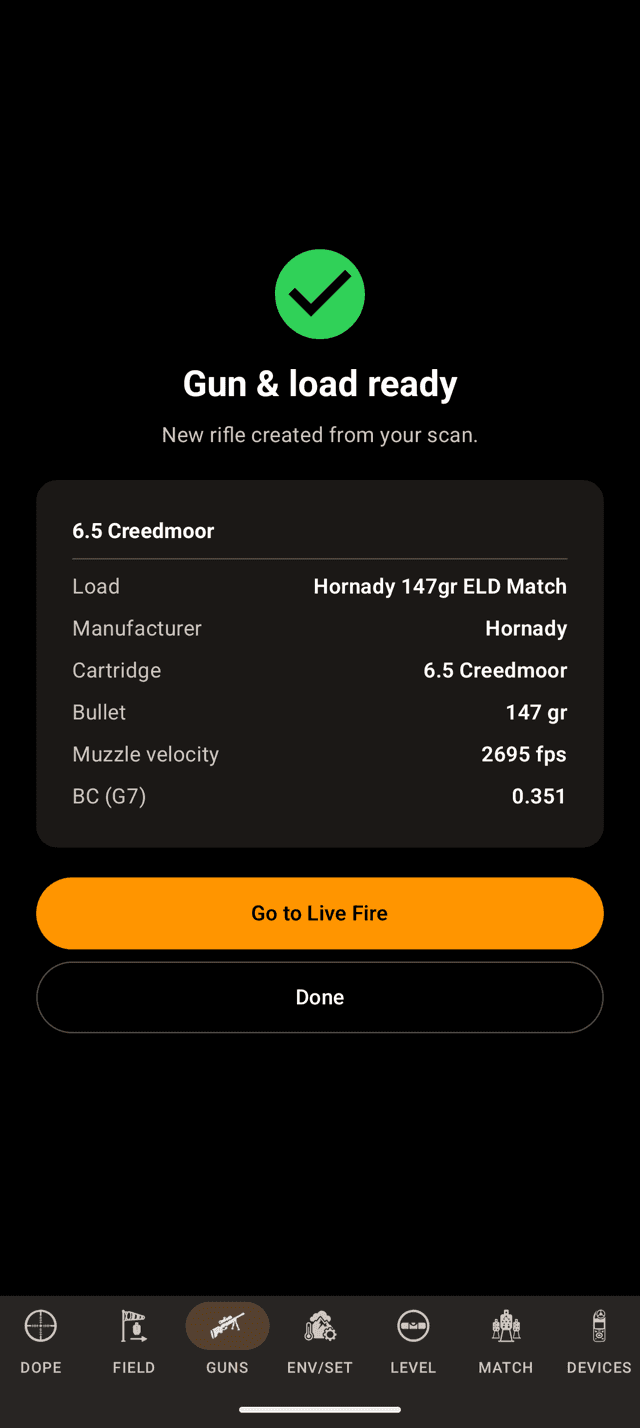
Everything the box publishes, laid out in one card. Go to Live Fire takes you to the dope.
Step 3
Check what it built, then shoot it
The result names what it found and what it did with it:
Gun & load ready: you had no rifle in that cartridge, so it created one along with the load.Load added: it went onto a rifle you already have.Load updated: an existing load was reset to the published factory values, which only happens after you say so.
The spec block is the ballistics: bullet weight, muzzle velocity, and the ballistic coefficient with its drag model named. That is G7 where the manufacturer publishes one, G1 otherwise. The new load is already the active one by the time you see this, so Go to Live Fire simply takes you to the dope.
A scan is a starting point, not a truth. The velocity on the box came off the manufacturer's test barrel, not out of yours. Chronograph it when you can and correct the number in the load editor.
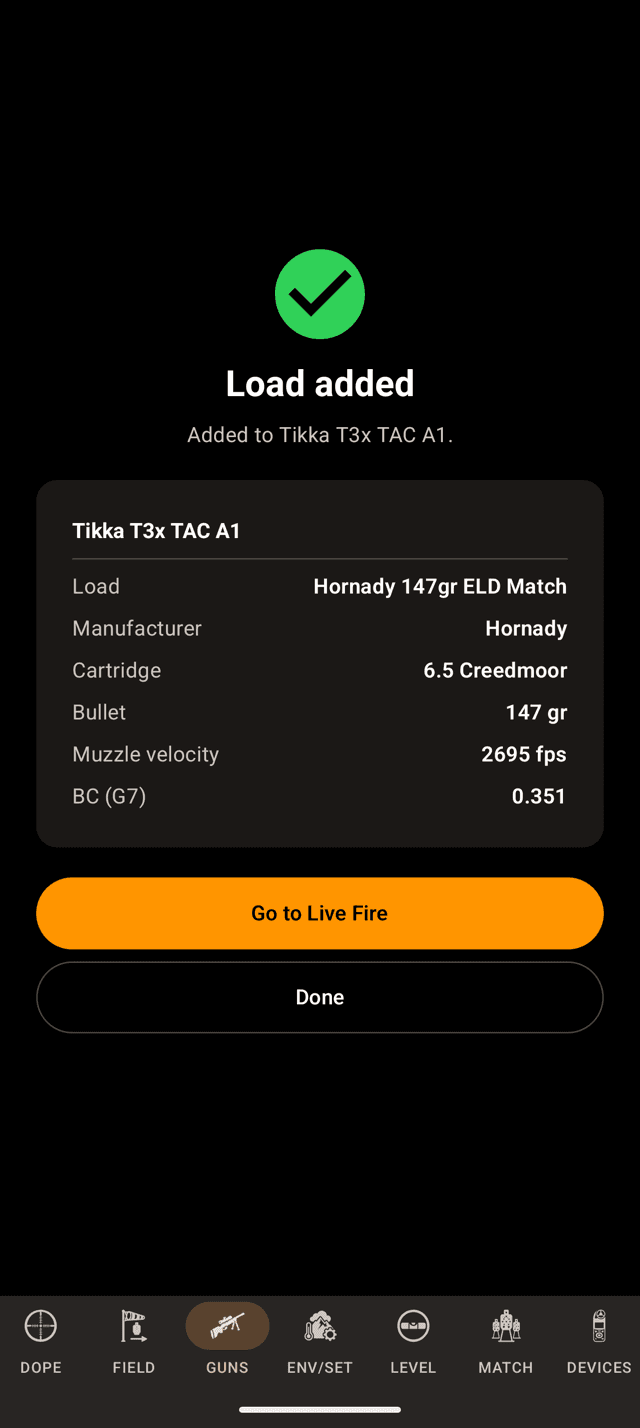
The same box, scanned with a 6.5 Creedmoor rifle already in the list.
If you have the rifle
It lands on the rifle you already own
Scan a box for a cartridge you already have a rifle in and the load goes onto that rifle, and the result says which one. Scan the same box again later and the app opens the load you already have rather than adding a second copy.
The questions it asks you
A scan never silently overwrites your work. Where the answer is genuinely yours to give, it stops and asks:
- “Which rifle?”: you own more than one in that cartridge, so it asks where the load belongs rather than guessing.
- “Different cartridge”: the box does not match the rifle you scanned from. The default button routes it to the right rifle; the other one adds it here anyway, for the times you know better than the label.
- “You've customized this load” : you have already trued the velocity or the BC on this one. Keep yours, or reset it to the published values. Nothing changes until you pick.
Scan didn't work?
- Scan Ammo opens the upgrade card. Scanning is part of Pro. The card is where the free trial starts.
- “Not in the catalog yet.” The barcode read fine, but that product isn't in the bundled data. Nothing is wrong with your phone. Add the load by hand in the Guns page, and send us the UPC at support@wristdope.com so the next release covers it.
- “Not enough data.” The product is known, but the manufacturer doesn't publish a velocity or a ballistic coefficient for it, and Wrist Dope will not invent either. Enter what you know by hand.
- “Camera access is off.” You turned the camera down for Wrist Dope at some point. Tap
Open Settings, allow the camera, and come back. On a phone with no usable camera the scanner saysCamera unavailable hereand offersEnter number instead. - Nothing happens at the frame. Poor light, a curved or shrink-wrapped box, or a barcode too close to the lens. Back off a few inches and steady it, or type the number.
- Handloads. There is no barcode to read, so there is nothing to scan. Build those in the load editor. Guns and Loads walks through every field.
- Air rifles. Pellet and slug tins aren't in the catalog yet. Airgun loads are fully supported. They are just entered by hand.
After the scan: Guns and Loads covers correcting what the scan filled in, Range Card and Dope Card turns the new load into a table you can print, and Target and Wind is the pair of calls that finish the solution.
Still stuck? support@wristdope.com