
Manual / Garmin
Garmin
Wrist Dope runs on Garmin watches. You build guns, loads and matches in Wrist Dope on your iPhone or Android phone, and Garmin Connect carries them to the watch.
This page is the whole manual for the watch app: setup, then every screen with what each button does on it, every menu, and what to do when something looks wrong.
The list
Which Garmin watches run it
These are the watches the Connect IQ Store offers Wrist Dope to. A watch that is not here cannot install it yet. tactix 7 and tactix 8 owners: AMOLED and MIP editions are both listed.
| Watch | Display |
|---|---|
| tactix | |
| tactix 8 AMOLED, 47 mm and 51 mm | AMOLED |
| tactix 8 Solar, 51 mm, including the AB Elite edition | MIP |
| tactix 7, every MIP edition | MIP |
| tactix 7 AMOLED Edition | AMOLED |
| fēnix 9 | |
| fēnix 9 Pro, 51 mm | AMOLED |
| fēnix 9 Pro, 47 mm | AMOLED |
| fēnix 9 Pro, 43 mm | AMOLED |
| fēnix 9 Pro Solar, 51 mm | MIP |
| fēnix 9 Pro Solar, 47 mm | MIP |
| fēnix 9, 47 mm | AMOLED |
| fēnix 9, 43 mm | AMOLED |
| fēnix 8 | |
| fēnix 8, 47 mm and 51 mm | AMOLED |
| fēnix 8, 43 mm | AMOLED |
| fēnix 8 Pro, 47 mm and 51 mm | AMOLED |
| fēnix 8 Pro MicroLED | MicroLED |
| fēnix 8 Solar, 51 mm | MIP |
| fēnix 8 Solar, 47 mm | MIP |
| fēnix 7 | |
| fēnix 7X | MIP |
| fēnix 7X Pro | MIP |
| fēnix 7X Pro Solar Edition, No Wi-Fi | MIP |
| fēnix 7 | MIP |
| fēnix 7 Pro | MIP |
| fēnix 7 Pro Solar Edition, No Wi-Fi | MIP |
| fēnix 7S | MIP |
| fēnix 7S Pro | MIP |
| fēnix E | |
| fēnix E | AMOLED |
| epix | |
| epix Pro (Gen 2), 51 mm | AMOLED |
| epix Pro (Gen 2), 47 mm | AMOLED |
| epix Pro (Gen 2), 42 mm | AMOLED |
| epix (Gen 2) | AMOLED |
| Forerunner | |
| Forerunner 970 | AMOLED |
| Forerunner 965 | AMOLED |
| Forerunner 955 and 955 Solar | MIP |
| Forerunner 570, 47 mm | AMOLED |
| Forerunner 570, 42 mm | AMOLED |
| Forerunner 265 | AMOLED |
| Forerunner 265S | AMOLED |
| Forerunner 170 and 170 Music | AMOLED |
| Forerunner 165 and 165 Music | AMOLED |
| Forerunner 70 | AMOLED |
| D2 | |
| D2 Mach 2 Pro | AMOLED |
| D2 Mach 2 | AMOLED |
| D2 Mach 1 Pro | AMOLED |
| D2 Mach 1 | AMOLED |
| MARQ | |
| MARQ (Gen 3), every edition | AMOLED |
| MARQ (Gen 2) Athlete, Adventurer, Captain, Golfer, Carbon and Commander Carbon | AMOLED |
| MARQ (Gen 2) Aviator | AMOLED |
| Descent | |
| Descent Mk3i, 51 mm | AMOLED |
| Descent Mk3 and Mk3i, 43 mm | AMOLED |
| Descent G2 | AMOLED |
| Enduro | |
| Enduro 4 | MIP |
| Enduro 3 | MIP |
| Enduro 2 | MIP |
| quatix | |
| quatix 8, 47 mm and 51 mm | AMOLED |
| quatix 8 Pro | AMOLED |
| quatix 7X Solar | MIP |
| quatix 7 | MIP |
| quatix 7 Pro and quatix 7 Sapphire | AMOLED |
| Instinct | |
| Instinct 3 AMOLED, 50 mm | AMOLED |
| Instinct 3 AMOLED, 45 mm | AMOLED |
| Instinct Crossover AMOLED | AMOLED |
| These have no touchscreen: everything runs on the five buttons. See On an Instinct. On the Instinct Crossover AMOLED the watch's own hands stay on the face while Wrist Dope is open, across the middle of the screen, where they can cover part of Live Fire's holds. | |
Display is the screen Garmin fits to that model: AMOLED, MicroLED, or MIP (memory-in-pixel). Wrist Dope runs on all three.
Setup
Set it up
iPhone
Wrist Dope 1.60 or later, and the Garmin Connect app.
Pro
The one-time Pro upgrade or an active free trial on the phone. The Garmin app is Pro only.
Watch software
Current. The watch app needs Connect IQ 5.1 or later, so update the watch in Garmin Connect first.
Step 1 · Garmin Connect
Pair the watch
Install Garmin Connect from the App Store and pair your watch in it. Wrist Dope reaches the watch through Garmin Connect, so this comes first, even if you never open Garmin Connect again.
While you are there, install any software update Garmin Connect offers the watch. The store only offers Wrist Dope to a watch on Connect IQ 5.1 or later.
Step 2 · Connect IQ Store
Install Wrist Dope on the watch
On the iPhone, open the Wrist Dope listing in the Connect IQ Store and install it on your watch. It goes across the next time the watch syncs with Garmin Connect.
On the watch it lands in the list you start activities from, next to Run and Hike. Nothing opens by itself.
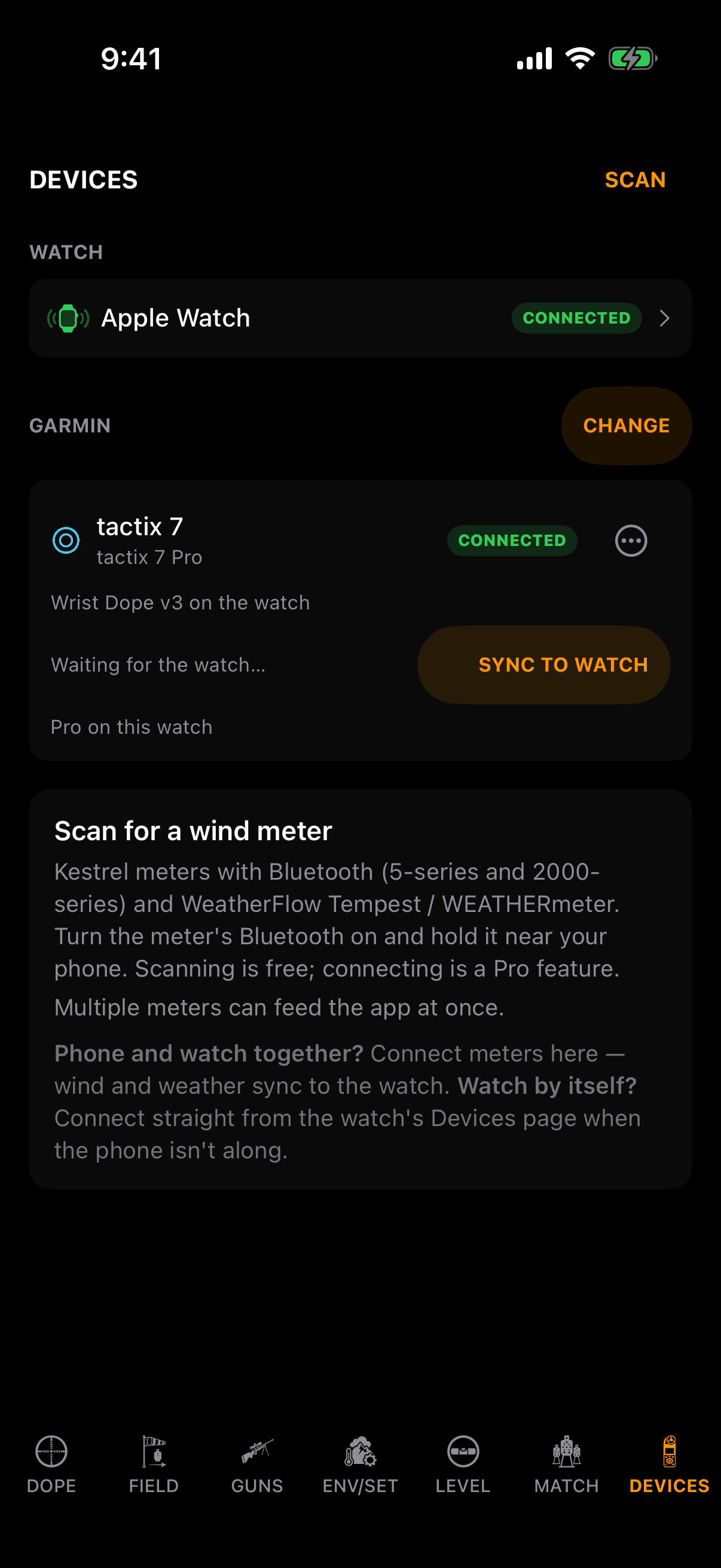
The watch's row under GARMIN on DEVICES: connected, and the version on the watch.
Step 3 · Wrist Dope on the iPhone
Choose the watch
Open DEVICES, the last entry in the iPhone page bar. The GARMIN section sits under the Apple Watch section. Tap CHOOSE WATCH.
Garmin Connect opens. Pick your watch there and it brings you back to Wrist Dope. The watch now has a row of its own: its name, a chip such as CONNECTED, and a line about the app, such as Wrist Dope v3 on the watch (the number is the version on the watch).
If the line says Wrist Dope isn't on this watch yet., tap GET IT on the row. It opens the app's store page for that watch.
Once the watch has taken Pro, the row's last line reads Pro on this watch.
Step 4 · On the watch
Open Wrist Dope and agree
From the watch face, press START. That opens the watch's list of activities and apps. Press DOWN until Wrist Dope is highlighted, then press START. On a touchscreen you can tap it too.
The first time, Wrist Dope shows Terms of Use. Press START (or tap AGREE) to accept. BACK closes the app without agreeing.
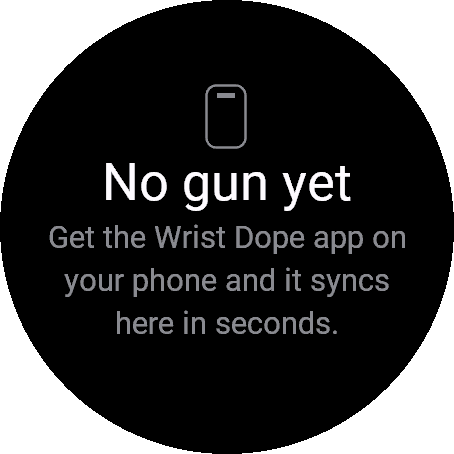
Next comes No gun yet: the watch has not heard from a Pro phone. Leave it open, with the phone nearby and Wrist Dope running on it. The watch introduces itself to the phone, the phone sends Pro across, and the watch switches to Synced. Press START and you are on Live Fire.
On the phone, the row's Pro line reads Open Wrist Dope on the watch to finish setup until the watch says hello, then Pro on this watch.
The list you opened it from is the watch's own. Most of these watches let you move an app up that list or mark it a favourite in the watch's settings; how you do it depends on the model.
Just after SYNC TO WATCH: Waiting for the watch… until the watch answers.
Step 5 · Your guns and loads
Send them to the watch
Tap SYNC TO WATCH on the watch's row. The phone sends your whole library, every gun and its loads. While it goes, the row reads Sending your library to the watch….
Then it reads Waiting for the watch…: the phone has sent all of it and is waiting for the watch to answer. When the watch answers, the line changes to Synced and the time, and the watch shows Synced from phone for a moment. If Wrist Dope is closed on the watch, the watch keeps what arrived and answers when you open the app. If the watch goes out of range, the phone sends it again when the watch is back.
You do that once. While the watch is connected, each change you make on the phone goes across on its own. Matches synced on the phone go across the same way.
To pick the rifle you are shooting on the watch, see Gun & Load.
Free or expired phone
Pro needed
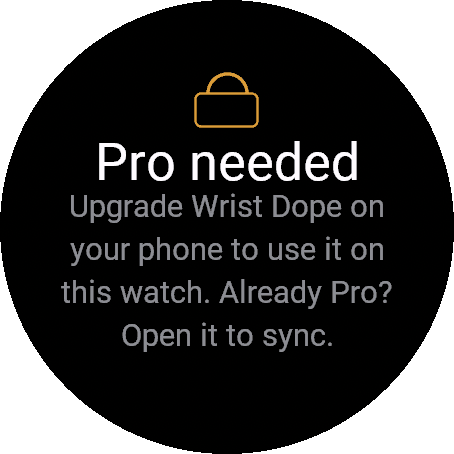
The Garmin app is Pro only. When the phone that syncs it is on the free tier, or its trial has ended, the watch shows Pro needed and nothing else. On the phone the row reads Watch needs Pro. Start your free trial on this phone, or Watch needs Pro. Upgrade on this phone once a trial has ended. Tap it for the offer.
Once the phone has Pro, open Wrist Dope on it with the watch connected. The next sync unlocks the watch, which shows Synced.
Troubleshooting the phone side
- The watch says Pro needed. The phone that syncs the watch is on the free tier, or its trial has ended. On the phone, tap the
Watch needs Proline on the watch's row to start a trial or upgrade. Already Pro? Open Wrist Dope on the phone with the watch connected so it can sync. - The row says Open Wrist Dope on the watch to finish setup. Wrist Dope is on the watch, but the watch has not introduced itself to the phone yet. Open the app on the watch, with the phone in range.
- The row stays on Waiting for the watch… The phone has sent your library and the watch has not answered yet. Open Wrist Dope on the watch, with the phone in range; the line changes to
Syncedwhen the watch answers. TappingSYNC TO WATCHagain sends a fresh copy. - Pro on this watch: waiting for the watch. The phone sent Pro and the watch has not taken it yet. Open Wrist Dope on the watch with the phone in range.
- Garmin Connect is required. Wrist Dope did not find Garmin Connect on the iPhone. Tap
GET GARMIN CONNECT, install it, pair your watch in it, then come back to DEVICES. - No Garmin watch yet, or CHOOSE WATCH does nothing useful. Garmin Connect only offers watches that are paired in it. Pair the watch there first, then tap
CHOOSE WATCHagain and pick it. If you came back from Garmin Connect without picking a watch, tapCHOOSE WATCHonce more. - The Connect IQ Store will not offer Wrist Dope. Either the watch software is out of date (the app needs Connect IQ 5.1 or later; update the watch in Garmin Connect), or the watch is not in the table above.
- The row says Wrist Dope isn't on this watch yet. Tap
GET ITon the row to open the store page for that watch, and install it. - The row says Connect the watch to check for Wrist Dope. The phone has not been able to ask the watch yet, because the watch is not connected. The chip reads
AWAY. Bring the watch into range with Bluetooth on. - It says Wrist Dope v3 on the watch (or another number). Nothing is wrong: the number is the version on the watch, and the phone can see the app.
- Update Wrist Dope on the watch to sync. The phone is sending something the watch's copy of Wrist Dope is too old to read. Update the watch app from the Connect IQ Store, then tap
SYNC TO WATCHagain. - The watch refused the last send. Update Wrist Dope on both the iPhone and the watch, then tap
SYNC TO WATCH. If it keeps happening, email us the exact line on the row. The same goes forWatch didn't accept Pro: the word in brackets after it is what we need. - Couldn't reach the watch; it will retry when the watch is back. Nothing to do. The send waits and goes again when the watch is back in range.
- Your library is too large to send to the watch. The watch holds less than the phone, and the whole library goes across. If the row says
Library too large for the watchwith a count of guns, that is what the watch counted. Remove guns or loads you no longer shoot, then tapSYNC TO WATCH. - The chip says NOT FOUND or BLUETOOTH OFF.
NOT FOUNDmeans the iPhone no longer sees the watch. Choose it again in Garmin Connect withCHANGEat the top of the section. ForBLUETOOTH OFF, turn Bluetooth on. - There is no GARMIN section on DEVICES. Update Wrist Dope from the App Store to 1.60 or later, open it once, then close it fully and open it again. The app decides which sections to show when it starts, from what it heard from our server on an earlier launch.
Android phone
Wrist Dope 1.60 or later from Google Play, and the Garmin Connect app.
Pro
The one-time Pro upgrade or an active free trial on the phone. The Garmin app is Pro only.
Watch software
Current. The watch app needs Connect IQ 5.1 or later, so update the watch in Garmin Connect first.
Step 1 · Garmin Connect
Pair the watch
Install Garmin Connect from Google Play and pair your watch in it. Wrist Dope reaches the watch through Garmin Connect, so this comes first. Wrist Dope only shows its GARMIN section on a phone that has Garmin Connect.
While you are there, install any software update Garmin Connect offers the watch. The store only offers Wrist Dope to a watch on Connect IQ 5.1 or later.
Step 2 · Connect IQ Store
Install Wrist Dope on the watch
On the phone, open the Wrist Dope listing in the Connect IQ Store and install it on your watch. It goes across the next time the watch syncs with Garmin Connect.
On the watch it lands in the list you start activities from, next to Run and Hike. Nothing opens by itself.
Step 3 · Wrist Dope on the phone
Choose the watch
Open DEVICES, the last entry in the page bar. The GARMIN section sits above the wind meters. Tap CHOOSE WATCH.
Garmin Connect does not open. Wrist Dope reads the watches paired in it, shows Waiting for Garmin Connect… for a moment, then opens its own list, Choose your Garmin watches. Tick your watch and tap DONE. You can tick more than one. CANCEL closes the list and changes nothing.
The watch now has a row of its own: its name as Garmin Connect has it, a chip such as CONNECTED, and a line about the app, such as Wrist Dope v3 on the watch (the number is the version on the watch).
If the line says Wrist Dope isn't on this watch yet., go back to step 2 and install it from the Connect IQ Store.
Once a watch is chosen, the button at the top of the section reads CHANGE. It opens the same list with your watches ticked, and DONE keeps exactly the ones ticked. To drop one watch, open the three-dot menu on its row and tap Forget Watch.
Step 4 · On the watch
Open Wrist Dope and agree
From the watch face, press START. That opens the watch's list of activities and apps. Press DOWN until Wrist Dope is highlighted, then press START. On a touchscreen you can tap it too.
The first time, Wrist Dope shows Terms of Use. Press START (or tap AGREE) to accept. BACK closes the app without agreeing.
Next comes No gun yet: the watch has not heard from a Pro phone. Leave it open, with the phone nearby and Wrist Dope running on it. The watch introduces itself to the phone, the phone sends Pro across, and the watch switches to Synced. Press START and you are on Live Fire.
On the phone, the row's Pro line reads Open Wrist Dope on the watch to finish setup until the watch says hello, then Pro on this watch.
The list you opened it from is the watch's own. Most of these watches let you move an app up that list or mark it a favourite in the watch's settings; how you do it depends on the model.
Step 5 · Your guns and loads
Send them to the watch
Tap SYNC TO WATCH on the watch's row. The phone sends your whole library, every gun and its loads. While it goes, the row reads Sending your library to the watch….
Then it reads Waiting for the watch…: the phone has sent all of it and is waiting for the watch to answer. When the watch answers, the line changes to Synced and the time, and the watch shows Synced from phone for a moment. If Wrist Dope is closed on the watch, the watch keeps what arrived and answers when you open the app. If the watch goes out of range, the phone sends it again when the watch is back.
You do that once. While the watch is connected, each change you make on the phone goes across on its own. Matches synced on the phone go across the same way.
To pick the rifle you are shooting on the watch, see Gun & Load.
Free or expired phone
Pro needed
The Garmin app is Pro only. When the phone that syncs it is on the free tier, or its trial has ended, the watch shows Pro needed and nothing else. On the phone the row reads Watch needs Pro. Start your free trial on this phone, or Watch needs Pro. Upgrade on this phone once a trial has ended. Tap it for the offer.
Once the phone has Pro, keep Wrist Dope open on it with the watch connected. The phone sends Pro to the watch on its own, and the watch shows Synced.
Troubleshooting the phone side
- The watch says Pro needed. The phone that syncs the watch is on the free tier, or its trial has ended. On the phone, tap the
Watch needs Proline on the watch's row to start a trial or upgrade. Already Pro? Open Wrist Dope on the phone with the watch connected so it can sync. - The row says Open Wrist Dope on the watch to finish setup. Wrist Dope is on the watch, but the watch has not introduced itself to the phone yet. Open the app on the watch, with the phone in range.
- The row stays on Waiting for the watch… The phone has sent your library and the watch has not answered yet. Open Wrist Dope on the watch, with the phone in range; the line changes to
Syncedwhen the watch answers. TappingSYNC TO WATCHagain sends a fresh copy. - Pro on this watch: waiting for the watch. The phone sent Pro and the watch has not taken it yet. Open Wrist Dope on the watch with the phone in range.
- There is no GARMIN section on DEVICES. Wrist Dope shows the section only on a phone that has Garmin Connect. Install it from Google Play, or update it there, then come back to DEVICES. If Garmin Connect is there and the section is not, update Wrist Dope from Google Play to 1.60 or later, open it once, then close it from your recent apps and open it again. The app decides which sections to show when it starts, from what it heard from our server on an earlier launch.
- The list says Garmin Connect has no watch paired yet. Wrist Dope lists only the watches paired in Garmin Connect. Tap
CANCEL, pair the watch in Garmin Connect, then come back and tapCHOOSE WATCHagain. TheNo Garmin watch yetcard says the same:Pair your watch in Garmin Connect, then choose it here. - The Connect IQ Store will not offer Wrist Dope. Either the watch software is out of date (the app needs Connect IQ 5.1 or later; update the watch in Garmin Connect), or the watch is not in the table above.
- The row says Wrist Dope isn't on this watch yet. Open the Wrist Dope listing in the Connect IQ Store and install it on that watch.
- The row says Connect the watch to check for Wrist Dope. The phone has not been able to ask the watch yet, because the watch is not connected. The chip reads
AWAYand the row saysBring the watch into range. - It says Wrist Dope v3 on the watch (or another number). Nothing is wrong: the number is the version on the watch, and the phone can see the app.
- Update Wrist Dope on the watch to sync. The phone is sending something the watch's copy of Wrist Dope is too old to read. Update the watch app from the Connect IQ Store, then tap
SYNC TO WATCHagain. - The watch refused the last send. Update Wrist Dope on both the phone and the watch, then tap
SYNC TO WATCH. If it keeps happening, email us the exact line on the row. The same goes forWatch didn't accept Pro: the word in brackets after it is what we need. - Couldn't reach the watch; it will retry when the watch is back. Nothing to do. The send waits and goes again when the watch is back in range.
- Your library is too large to send to the watch. The watch holds less than the phone, and the whole library goes across. If the row says
Library too large for the watchwith a count of guns, that is what the watch counted. Remove guns or loads you no longer shoot, then tapSYNC TO WATCH. - The chip says NOT FOUND. The phone no longer sees the watch. The row says what to do:
Your phone no longer sees this watch. Pair it again in Garmin Connect.
Wrist Dope uses the watch's five buttons the same way on every page. The map below is the general rule; each screen further down has its own map with exactly what happens there.
| Button | Press | Hold |
|---|---|---|
| UP | Raises the page's value (range, speed, row) | App menu (some pages open their own menu) |
| DOWN | Lowers the page's value | Same as a press |
| START | The page's action: LOCK, ZERO, start the clock | The watch's own |
| BACK | Back to Live Fire. On Live Fire: closes Wrist Dope | The watch's own |
| LIGHT, and holding START or BACK: the watch's own | ||
- UP and DOWN never change page. They change the value the page is about: the range on Live Fire, the wind speed on Wind, the row on the Range Card.
- A hold of DOWN is one step, the same as a press (on an Instinct a held DOWN is the watch's own). Nothing repeats while you hold a button. For big moves, press quickly: on the Range Card, the target preset and the value editor, the third quick press in a row moves 2 and the sixth moves 5. A pause starts again at 1.
- Every press that moves a value gives one short vibration.
- A tap only does something where a screen below says so. Taps anywhere else are ignored on purpose, so a brush of the glass never locks or zeroes anything.
These belong to the watch and work the same on every screen
- LIGHTPress: backlight. Hold: the watch's controls menu.
- Hold STARTThe watch's own.
- Hold BACKThe watch's own.
Each map leaves these out and draws LIGHT faint, along with any button that does nothing on that screen. Wrist Dope never receives these three.
No touchscreen
On an Instinct
The Instinct has the same five buttons in the same places, under other names. This manual uses the names on the left:
| This manual | On the Instinct |
|---|---|
| LIGHT | CTRL |
| UP | MENU |
| DOWN | ABC |
| START | GPS |
| BACK | SET |
There is no touchscreen, so there is no swipe and no tap: skip the Touch lines under the maps. To change page, hold MENU for the app menu, highlight the page with MENU or ABC, and press GPS. Wind, the Range Card, Level and the Stage Card open a menu of their own first; see Getting to any page. A held ABC is the watch's own: it does not change page in Wrist Dope.
Wrist Dope has button routes for the things a touch watch does with a tap. On Wind, GPS steps from the speed to the direction and then locks, and a held MENU opens a Wind menu for the mode and the confidence. In Hunter capture, Fix Range and Delete Target ask which target.
Navigation
Getting to any page
With buttons, no button moves from page to page. You go through the app menu:
BACK
Live Fire (skip this if you are already there)
Hold UP
The app menu, WRIST DOPE
UP / DOWN
Highlight the page you want
START
You are on that page
From Target a hold of UP opens the app menu straight away, and from Wind too on a touchscreen watch. Range Card, Level and the Stage Card each open their own menu on a hold of UP, so press BACK first to get to Live Fire. (The Stage Card's menu also has a Pages row that opens the app menu.) On a watch with no touchscreen, Wind opens a menu of its own, with a Pages row.
With touch, swipe. The pages sit in a loop, and Live Fire is where the app opens:
- LIVE FIRE
- WIND
- RANGE CARD
- STAGE(match armed)
- LEVEL(rifle mount)
- TARGET→ back to LIVE FIRE
- Swipe up, or left, for the next page. Swipe down, or right from the middle of the screen, for the one before.
- A swipe right that starts at the edge of the screen is the same as
BACK. - The Stage Card is only in the loop while a match is armed, and Level only while the mount is set to
RIFLE. In the app menu, the Stage Card's row is calledMatchwhile no match is armed. - Live Fire also takes you to Target or Wind with a tap on its left or right rose.
To leave the app, press BACK until you are on Live Fire, then once more.
On a touchscreen watch, two things are set with a tap: the wind direction and mode on the Wind page, and picking a row in Hunter capture. On a watch with no touchscreen, such as the Instinct, both have button routes; those sections say how.
The pages
Screen by screen
Page
Live Fire
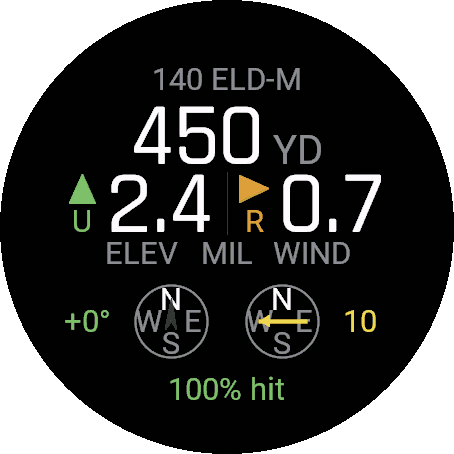
Wrist Dope opens on this page. Top to bottom: the active load, the range, the elevation and wind holds with their unit (MIL or MOA), two small roses (the target's bearing on the left, the wind on the right) and the hit chance, such as 100% hit, followed by a word such as Ideal where the screen has room. Dashes in place of numbers mean there is no solution at that range yet.
UP and DOWN move the range by the Live Step: how far one press moves it, 5, 10, 25, 50 or 100 yards (or metres). You set it in Live Fire Setup in the app menu, along with Range Max, the furthest the range goes.
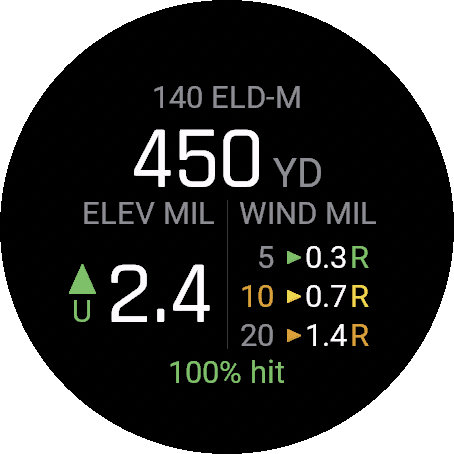
START swaps the holds for the multi-wind table: the elevation beside the wind hold at three wind speeds, with the live wind's row in orange. START again puts it back.
| Button | Press | Hold |
|---|---|---|
| UP | Range up one Live Step | App menu |
| DOWN | Range down one Live Step | Same as a press |
| START | Multi-wind table on or off | The watch's own |
| BACK | Closes Wrist Dope | The watch's own |
| LIGHT, and holding START or BACK: the watch's own | ||
Touch: the top line opens Conditions; the holds turn the multi-wind table on or off; the left rose goes to Target, the right rose to Wind.
Page
Target
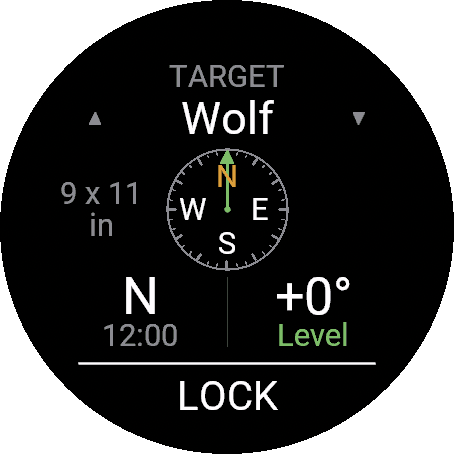
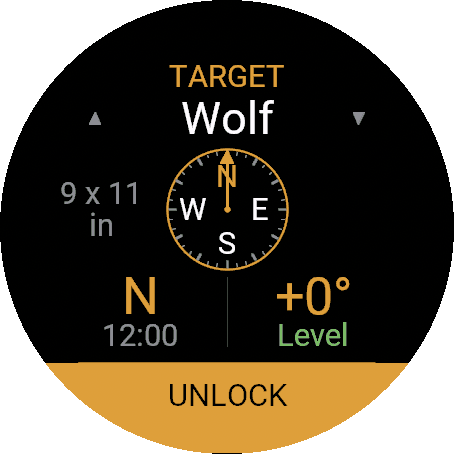
TARGET at the top (orange once locked) with the load, the target preset (such as Wolf: a named target with its size, picked with UP and DOWN) between two chevrons, a compass dial with the bearing needle, and the readouts: direction, angle, the bearing as a clock, and Uphill, Downhill or Level. The bottom segment says LOCK or UNLOCK.
To lock a target: point the watch at it and press START. Wrist Dope stores where the watch points and how far it tilts, then goes to Live Fire. While locked the preset is frozen; START on Target unlocks it.
| Button | Press | Hold |
|---|---|---|
| UP | Next target preset (not while locked) | App menu |
| DOWN | Previous target preset (not while locked) | Same as a press |
| START | LOCK and go to Live Fire. Locked: UNLOCK | The watch's own |
| BACK | Live Fire | The watch's own |
| LIGHT, and holding START or BACK: the watch's own | ||
Touch: the bottom segment does what START does. The rest of the screen ignores taps.
Page
Wind
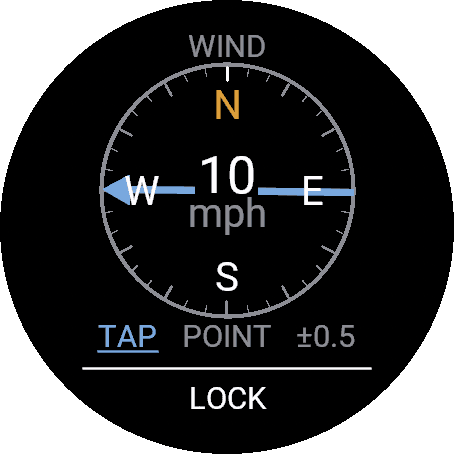
WIND at the top (orange once locked), a compass dial with the wind arrow across it (its tail is where the wind comes from), the speed in the middle, the mode row (such as TAP POINT ±0.5, with MANUAL in place of TAP on a watch with no touchscreen), and the LOCK segment.
The modes: TAP (tap the ring where the wind comes from), POINT (point the watch into the wind) and METER, which shows when a wind meter is linked and is then the default. The ± figure is the confidence: how many mph you think the call could be off by. Tap it to step it, or on a watch with no touchscreen use the Wind menu.
With a meter driving, START starts a 10 second CAPTURE that averages the readings and locks itself. A second START during the capture locks early.
On a touchscreen watch the direction and the mode are set by touch, and the buttons set the speed (UP and DOWN, 1 mph a press) and LOCK. A watch with no touchscreen does all of it with buttons: see On a watch with no touchscreen below.
| Button | Press | Hold |
|---|---|---|
| UP | Speed up 1 mph (not while a meter drives it) | App menu |
| DOWN | Speed down 1 mph (same exception) | Same as a press |
| START | LOCK and go to Live Fire. Locked: UNLOCK. Meter: CAPTURE | The watch's own |
| BACK | Live Fire | The watch's own |
| LIGHT, and holding START or BACK: the watch's own | ||
Touch: tap the ring to set the direction; tap TAP, POINT or METER to change mode (not while locked); tap ±1 to step the confidence; the bottom segment does what START does.
| Button | Press | Hold |
|---|---|---|
| UPMENU | Speed lit: 1 mph faster. Direction lit: 10° clockwise | Wind menu: Mode, Confidence, Pages |
| DOWNABC | Speed lit: 1 mph slower. Direction lit: 10° the other way | The watch's own |
| STARTGPS | Speed lit: light the direction. Direction lit: LOCK, stay here. Locked: UNLOCK. Meter: CAPTURE | The watch's own |
| BACKSET | Direction lit: back to the speed. Otherwise: Live Fire | The watch's own |
| LIGHT (CTRL), and holding START or BACK: the watch's own | ||
Page
Range Card
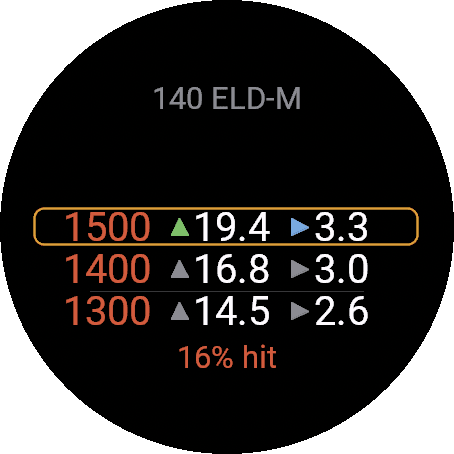
The load at the top, then rows of range, elevation hold and wind hold, with the selected row centred in an orange frame and its hit chance under the rows. How many rows show depends on the watch (three on a fēnix 8). Where there is room, the wind call sits at the bottom, such as 10 mph @ 9:00. A range in red is one where the bullet has slowed to under 1.2 times the speed of sound. The rows come from the Range Card settings.
START sends the selected range to Live Fire and takes you there.
| Button | Press | Hold |
|---|---|---|
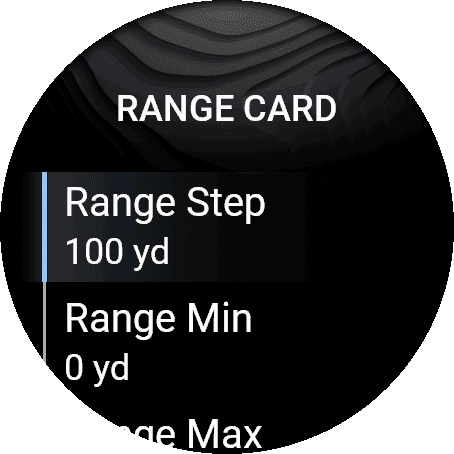
| UP | Selection up one row | Range Card settings (not the app menu) |
| DOWN | Selection down one row | Same as a press |
| START | Selected range to Live Fire, and go there | The watch's own |
| BACK | Live Fire | The watch's own |
| LIGHT, and holding START or BACK: the watch's own | ||
Touch: the load line opens Gun & Load; a row does what START does for that row.
Page (while a match is armed)
Stage Card
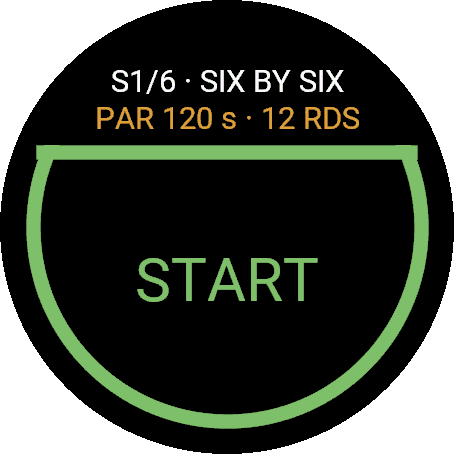
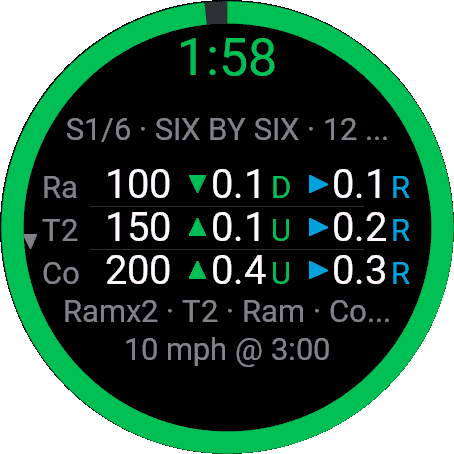
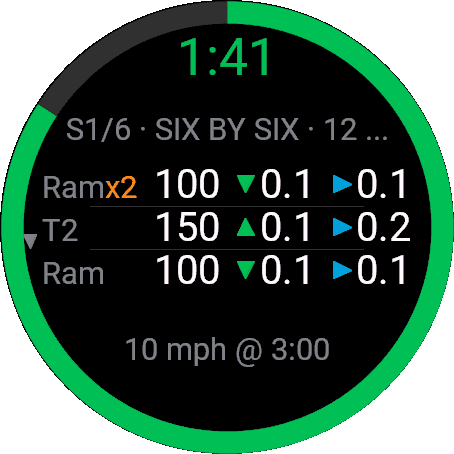
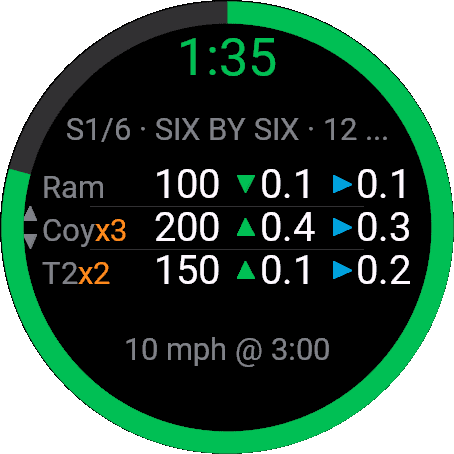
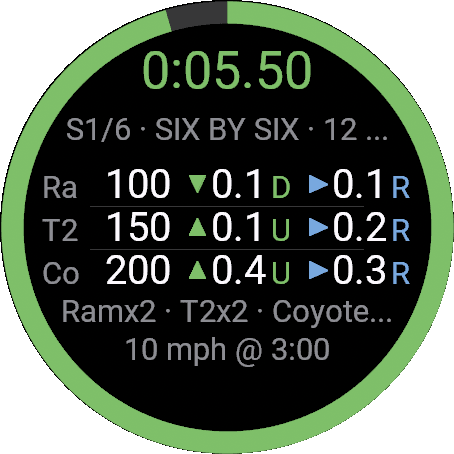
The Stage Card shows the armed match's current stage. It has a few faces:
- Armed: the stage and match (
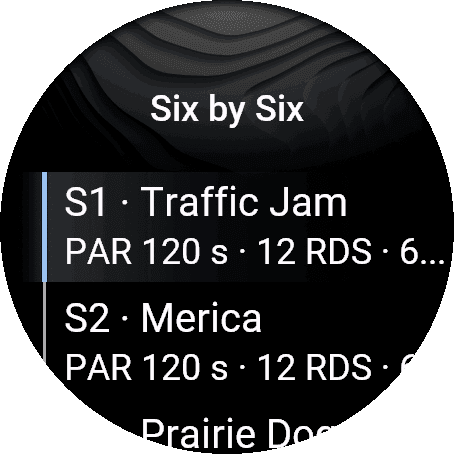
S1/6 · SIX BY SIX), the par (the time allowed) and rounds (PAR 120 s · 12 RDS), and one big greenSTART. A stage with a par is armed as soon as the card shows it. - Running: the clock, turning from green to amber, orange and red as the par runs out, the target rows (
T2 150 ▲0.1 U ▶0.2 R), the order to engage them and the wind. The rim of the screen drains like a clock on every page while it runs. - Finished: the time you stopped at (such as
0:05.50), orTIMEwhen the par ran out. - No par: the rows and
NO PAR.STARTopens the PAR editor so you can set one.
The rows come in two views. By target, the default, lists each target once, with the order to engage them on the line under the rows. By sequence lists one row per step, in firing order: a target you shoot again is listed again, and x2 or x3 in orange after the label means that step is more than one round. It has no order line, because the rows are the order. Switch with By Sequence or By Target in the match actions; the watch remembers your choice.
When there are more rows than fit, a small grey arrow left of the rows points the way to the rest: up for rows above, down for rows below. UP and DOWN scroll one row a press.
BACK goes to Live Fire and the clock keeps running. To switch stage or match, change the view, mute the timer or end the match, hold UP for the match actions.
| Button | Press | Hold |
|---|---|---|
| UP | Scroll the rows up one row (nothing on the armed face) | Match actions |
| DOWN | Scroll the rows down one row (nothing on the armed face) | Same as a press |
| START | Armed: start. Running: stop. Done: clear. No par: PAR editor | The watch's own |
| BACK | Live Fire (the clock keeps running) | The watch's own |
| LIGHT, and holding START or BACK: the watch's own | ||
Touch: the header opens the stage picker; on the armed face a tap anywhere on the green starts the clock.
Stage Card, Hunter stage
Hunter capture
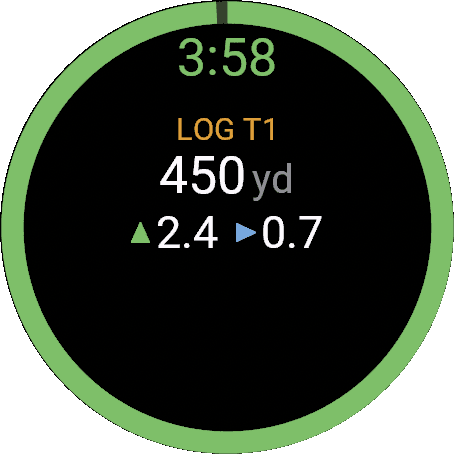
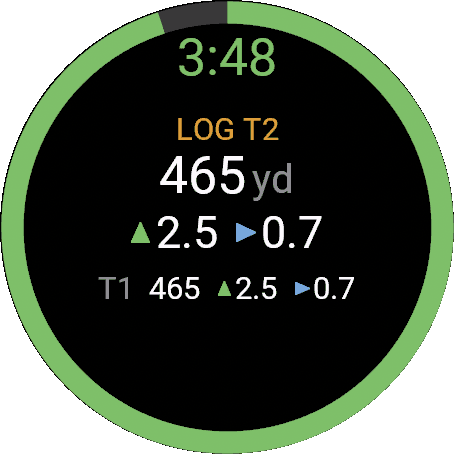
A Hunter stage is one where you find, range and log your own targets as you go. It starts from + Hunter Stage in the match picker or the match actions. While you are logging, the Stage Card is the capture screen: a big range number (what your rangefinder gave you), the hold at that range under it, and the targets logged so far, newest last. The hint reads LOG T4 for the next one.
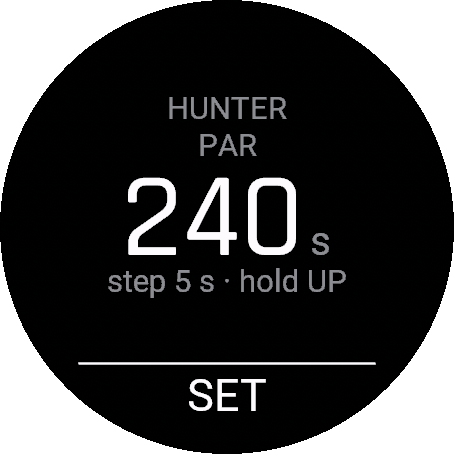
Dial the range with UP and DOWN and press START to log a target there. Hold UP for Fix Range, Delete Target and Done Logging. Done Logging turns the card into the normal Stage Card with the clock still running; Back to Logging turns it back.
On a touchscreen watch, tap a logged row to pick it; Fix Range and Delete Target act on the picked target, or the newest when none is picked. On a watch with no touchscreen, with more than one target logged, they first ask which target: a list of the logged targets, newest first, each with its range.
| Button | Press | Hold |
|---|---|---|
| UP | Range up one Live Step | Match actions (Fix, Delete, Done) |
| DOWN | Range down one Live Step | Same as a press |
| START | LOG a target at this range (FIX it if a row is picked) | The watch's own |
| BACK | Live Fire (the clock keeps running) | The watch's own |
| LIGHT, and holding START or BACK: the watch's own | ||
Touch: a logged row picks it for Fix Range or Delete Target; tap it again to let go.
Page (rifle mount)
Level
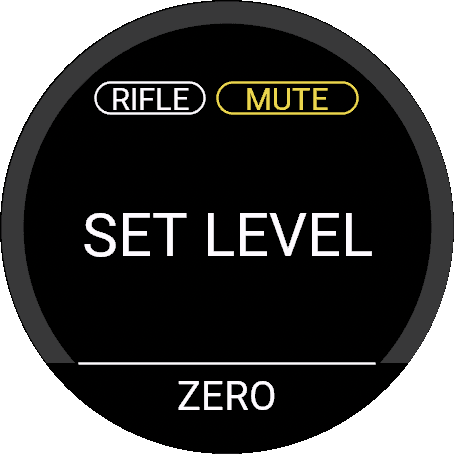
Level is for a watch strapped to the rifle. It shows two chips at the top (RIFLE or WRIST, and the cue: MUTE, VIBRATE or TONE), the cant (how far the rifle leans) in degrees with L or R, a word (LEVEL, SET LEVEL or NO SIGNAL), a horizon bar, and ZERO at the bottom. The rim of the screen turns lime when the rifle is level.
Set the rifle level and press START to zero: that tells the watch this position is level, so it measures cant from there. If the watch was moving it says HOLD STILL; hold it still and press again. Once zeroed, the level band also shows around Live Fire and the Range Card.
The page is only in the loop with the mount set to RIFLE. Set it in Scope Level.
| Button | Press | Hold |
|---|---|---|
| UP | Cue: MUTE, VIBRATE, TONE, then MUTE again | Scope Level settings |
| DOWN | Cue the other way round | Same as a press |
| START | ZERO (sets level here) | The watch's own |
| BACK | Live Fire | The watch's own |
| LIGHT, and holding START or BACK: the watch's own | ||
Touch: ZERO at the bottom zeroes; the left half of the chip row flips RIFLE and WRIST; the right half steps the cue.
Most menus are the watch's own lists, drawn the watch's way: the highlighted row sits near the middle and the next row peeks in at the edge of the screen. UP and DOWN move the highlight, START opens or changes the highlighted row, and BACK closes the list. On a touchscreen you can also tap a row and swipe to scroll.
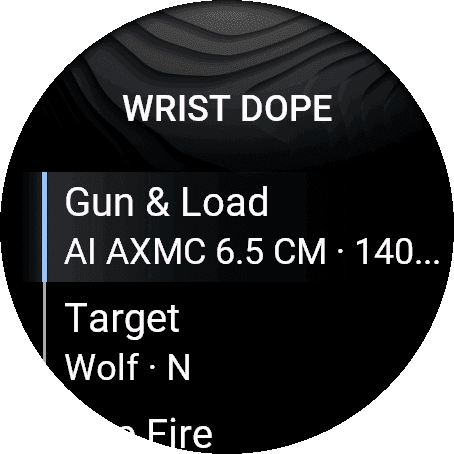
| Button | Press | Hold |
|---|---|---|
| UP | Move the highlight up | Nothing |
| DOWN | Move the highlight down | Same as a press |
| START | Open the row (a page row goes to that page) | The watch's own |
| BACK | Close the menu | The watch's own |
| LIGHT, and holding START or BACK: the watch's own | ||
Menu · app menu, Gun & Load
Gun & Load
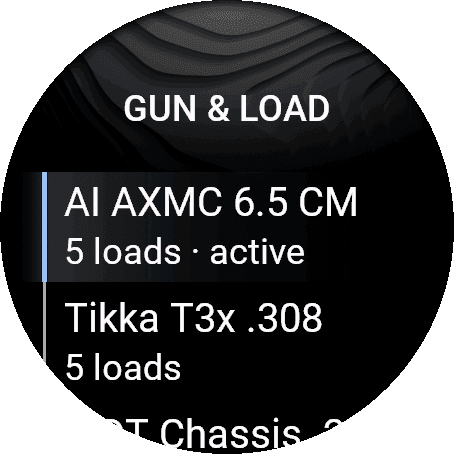
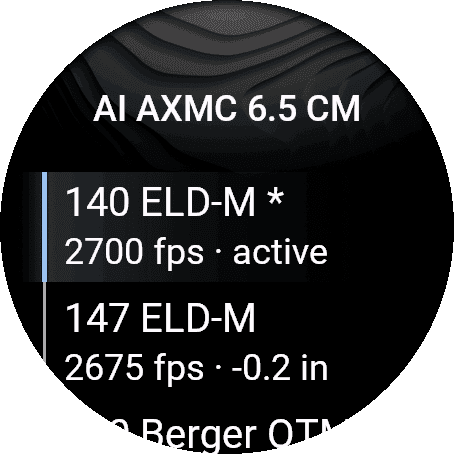
Two lists. First the guns, with how many loads each has; then the loads of the gun you open, with a star on the one the gun is zeroed with and the velocity under each. If you have one gun, it opens straight on its loads.
Picking a load makes it the active one, tells the phone, and goes to Live Fire. Guns and loads are made on the phone: that is what the Add on phone row means.
| Button | Press | Hold |
|---|---|---|
| UP | Move the highlight up | Nothing |
| DOWN | Move the highlight down | Same as a press |
| START | Gun: open its loads. Load: use it, go to Live Fire | The watch's own |
| BACK | Loads: back to the guns. Guns: close | The watch's own |
| LIGHT, and holding START or BACK: the watch's own | ||
Touch: also opens from a tap on the load line of the Range Card.
Menu · app menu, Conditions
Conditions
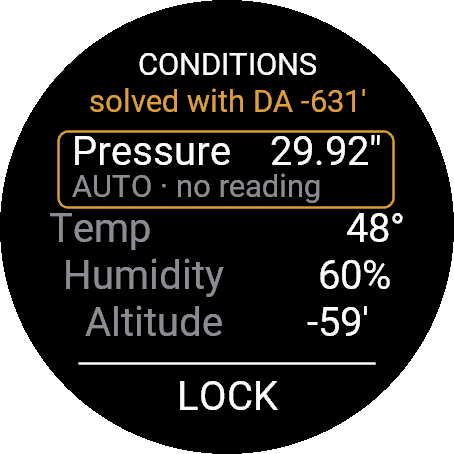
CONDITIONS and the density altitude the solution uses (DA: the air's thickness, given as the altitude where standard air is that thick), then rows for pressure, temperature, humidity, altitude and latitude. The highlighted row also shows where the value comes from and how old it is, such as WX · 4 min ago (weather data) or WATCH · live (the watch's own sensors); MANUAL means you set it. LOCK at the bottom freezes all of them.
START on a row opens the value editor. Press DOWN past the last row to reach LOCK.
The screenshot below comes from Garmin's simulator, so its readings are the simulator's (a density altitude of -631 ft), not a real day's.
| Button | Press | Hold |
|---|---|---|
| UP | Up one row | Close, open the app menu |
| DOWN | Down one row (past the last: LOCK) | Same as a press |
| START | Row: open its editor. LOCK: lock or unlock | The watch's own |
| BACK | Close, back to the page under it | The watch's own |
| LIGHT, and holding START or BACK: the watch's own | ||
Touch: LOCK locks; a row opens its editor. Also opens from a tap on Live Fire's top line.
Editor · from Conditions, or PAR
Value editor
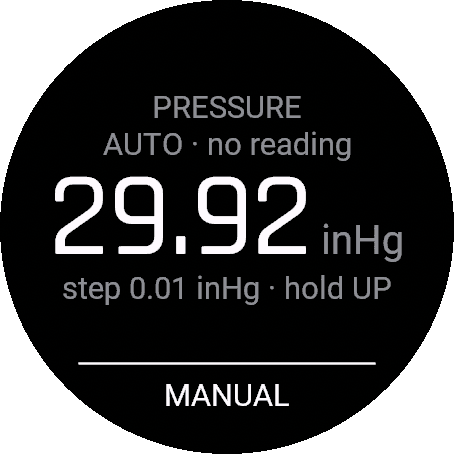
The same editor handles every number you set on the watch: a condition (pressure, temperature and the rest), a stage's PAR, and a Hunter stage's par. It shows the name, the value and its unit, the step size, and a segment at the bottom.
On a condition, while you have not changed the value, the segment offers the other mode: MANUAL pins the reading as it is, AUTO hands it back to the watch. So two presses of START on a Conditions row flip it between the two. On a par, an untouched START sets the value shown.
| Button | Press | Hold |
|---|---|---|
| UP | Value up one step | Next step size |
| DOWN | Value down one step | Same as a press |
| START | Save and close | The watch's own |
| BACK | Cancel, nothing saved | The watch's own |
| LIGHT, and holding START or BACK: the watch's own | ||
Touch: the segment at the bottom does what START does. Swipes do nothing here.
Menu · app menu, Meters
Meters
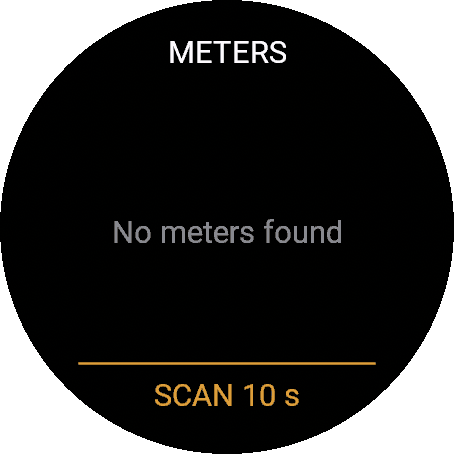
This page lists the wind and weather meters the watch can read, in sections: CONNECTED (or OFFLINE), PHONE for a meter the phone is reading and passing on, and FOUND for meters a scan saw, each with START to connect. SCAN 10 s sits at the bottom.
Press DOWN past the last row to reach SCAN. To disconnect or forget the connected meter, highlight it and hold UP. The Wind Meters guide covers the meters themselves.
| Button | Press | Hold |
|---|---|---|
| UP | Up one row | Connected row: Disconnect, Forget. Else: app menu |
| DOWN | Down one row (past the last: SCAN) | Same as a press |
| START | SCAN, or connect, disconnect, retry the row | The watch's own |
| BACK | Close, back to the page under it | The watch's own |
| LIGHT, and holding START or BACK: the watch's own | ||
Touch: SCAN scans; a row does what START does for it.
Menu · app menu
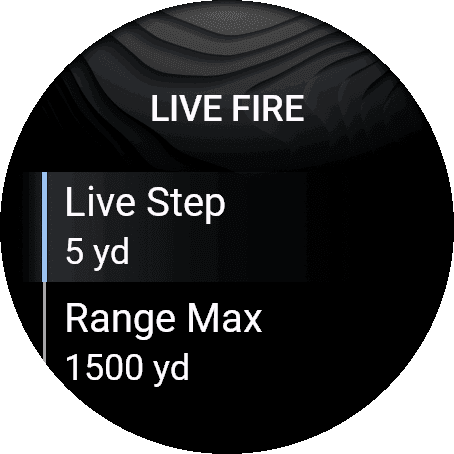
Units, Live Fire Setup, Range Card Setup
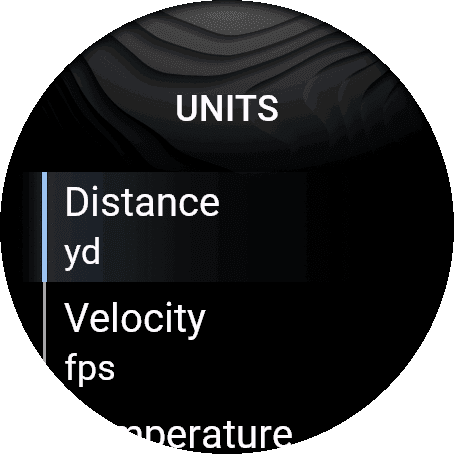
Three lists whose rows change in place: each START moves the highlighted row to its next value, shown underneath. Changes go to the phone too.
Units: Distance (yd or m), Velocity (fps or m/s), Temperature (°F or °C), Pressure (inHg or hPa), Altitude (ft or m).Live Fire Setup:Live Step, how far one press of UP or DOWN moves the range on Live Fire (5, 10, 25, 50 or 100), andRange Max, the furthest it goes.Range Card Setup(also a hold of UP on the Range Card):Range Step(the gap between rows),Range MinandRange Max(the first and last row), andOrder(near first or far first).
| Button | Press | Hold |
|---|---|---|
| UP | Move the highlight up | Nothing |
| DOWN | Move the highlight down | Same as a press |
| START | Change the row to its next value | The watch's own |
| BACK | Close the list | The watch's own |
| LIGHT, and holding START or BACK: the watch's own | ||
Menu · hold UP on Level, or app menu
Scope Level
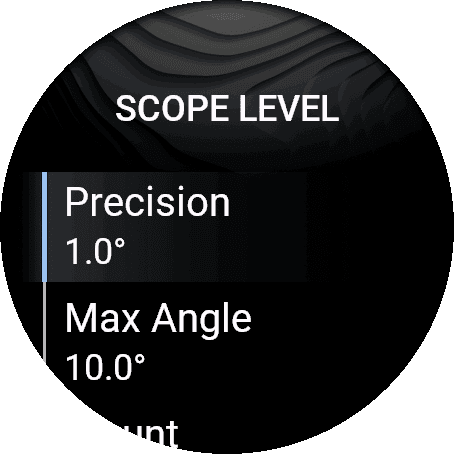
The Level's settings, changed in place like Units:
Precision: how close counts as level, 0.5°, 1.0° or 2.0°.Max Angle: the lean at which the cue is at its fastest, 5°, 10° or 20°.Mount:WRISTorRIFLE. Level is only a page on the rifle mount.Tone:VIBRATE,TONEorMUTE. On the wrist it readsRifle mount only.Reset Level: asksReset level?, then clears your zero back to the watch's own level.
If you switch the mount to WRIST from the Level page, closing the list takes you to Live Fire.
| Button | Press | Hold |
|---|---|---|
| UP | Move the highlight up | Nothing |
| DOWN | Move the highlight down | Same as a press |
| START | Change the row (Reset Level asks first) | The watch's own |
| BACK | Close the list | The watch's own |
| LIGHT, and holding START or BACK: the watch's own | ||
Menu · app menu, Match
Match and stage pickers
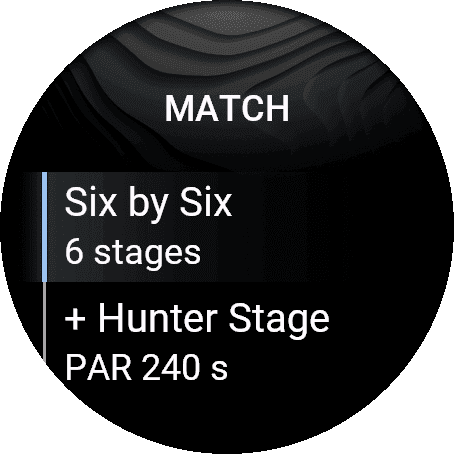
MATCH lists the matches synced from the phone, the armed one marked active, with + Hunter Stage last. Picking a match arms it and opens the Stage Card. With nothing synced it says No match synced: matches come from the phone app.
The stage picker lists the armed match's stages with their par, rounds and targets. Open it with Switch Stage in the match actions, or a tap on the Stage Card's header.
| Button | Press | Hold |
|---|---|---|
| UP | Move the highlight up | Nothing |
| DOWN | Move the highlight down | Same as a press |
| START | Match: arm it. Stage: switch to it. + Hunter Stage: its par | The watch's own |
| BACK | Close the list | The watch's own |
| LIGHT, and holding START or BACK: the watch's own | ||
Menu · hold UP on the Stage Card
Match actions
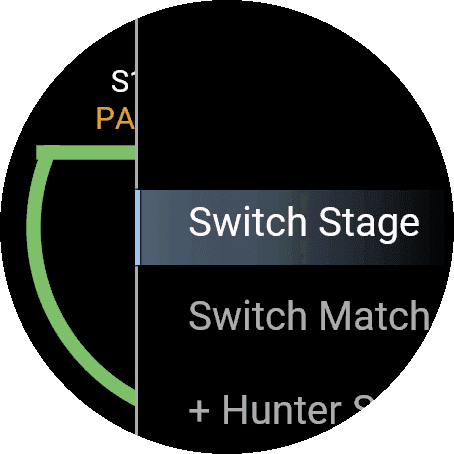
The list opens over the Stage Card. Its rows, in order, each where it applies:
- Hunter stage only:
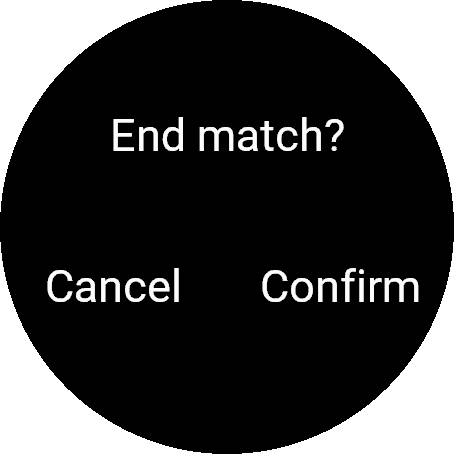
Fix Range,Delete TargetandDone Loggingwhile logging,Back to Loggingafter. On a watch with no touchscreen, Fix Range and Delete Target ask which target when more than one is logged. Arm Timer, when the stage has no par: opens the PAR editor.Switch Stage,Switch Match,+ Hunter Stage.By Sequence(orBy Target), named for the view it switches to: on a stage that has a sequence, and not while you are logging a Hunter stage. See the Stage Card.Mute Timer(orUnmute Timer): the card then showsMUTE.End Match: asksEnd match?, then takes you to Live Fire.Pages: the app menu.
| Button | Press | Hold |
|---|---|---|
| UP | Move the highlight up | Nothing |
| DOWN | Move the highlight down | Same as a press |
| START | Run the highlighted action | The watch's own |
| BACK | Close, back to the Stage Card | The watch's own |
| LIGHT, and holding START or BACK: the watch's own | ||
Menu · app menu
Sync and About
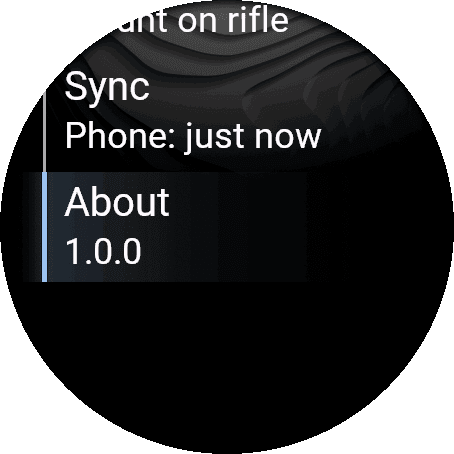
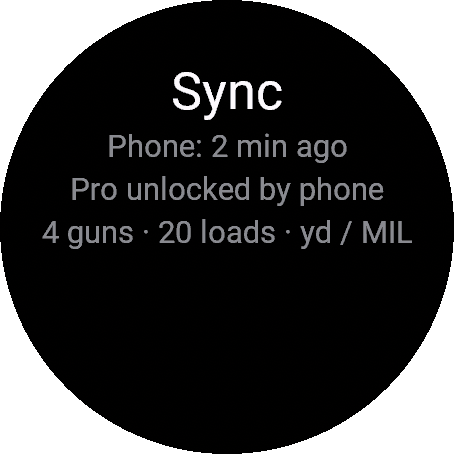
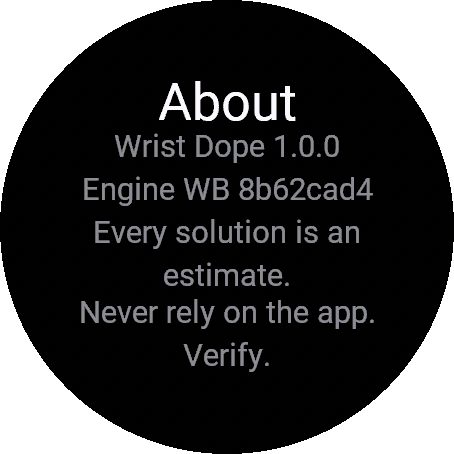
Both pages are read-only. Sync says when the watch last heard from the phone (Phone: 2 min ago, or Not connected), whether it is Pro, and what it holds (4 guns · 7 loads · yd / MIL). About gives the version of Wrist Dope on the watch, the ballistic engine it runs, and the first lines of the terms.
| Button | Press | Hold |
|---|---|---|
| UP | Nothing | Nothing |
| DOWN | Nothing | Nothing |
| START | Nothing | The watch's own |
| BACK | Close | The watch's own |
| LIGHT, and holding START or BACK: the watch's own | ||
Everything else
Start-up screens
These come before Live Fire. They only use START (a tap does the same) and BACK; UP and DOWN do nothing on them.
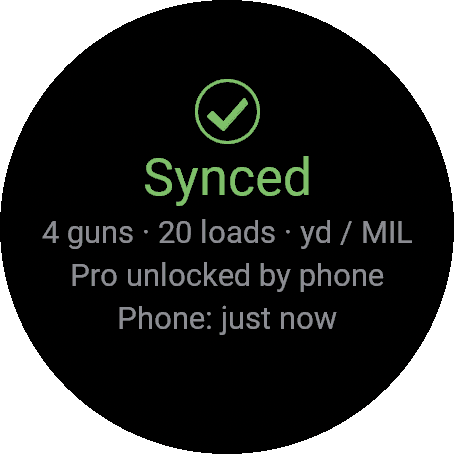
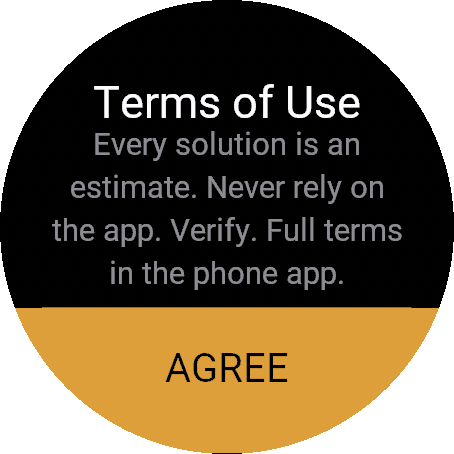
Terms of Use, the first time only:Every solution is an estimate.Never rely on the app. Verify.STARTisAGREE.No gun yet: the watch has not heard from a Pro phone yet. See step 4.Pro needed: the phone is on the free tier or its trial ended. See Pro needed.Synced, with a green check: Pro just arrived. It shows what the watch holds and when it last heard from the phone.STARTgoes on to Live Fire.
| Button | Press | Hold |
|---|---|---|
| UP | Nothing | Nothing |
| DOWN | Nothing | Nothing |
| START | Terms: AGREE. Synced: go on. No gun yet, Pro needed: nothing | The watch's own |
| BACK | Closes Wrist Dope | The watch's own |
| LIGHT, and holding START or BACK: the watch's own | ||
On the watch face
Glance and complications
Glances are the short summaries the watch lists under the watch face. Press DOWN from the watch face to scroll through them. Wrist Dope's reads WRIST DOPE over the range and holds of your last solve, such as 450 ▲2.4 ▶0.7: the arrows and colours give the direction (elevation in green, wind in orange), so there are no U, D, L or R letters. Before the first solve it reads No solve yet, and on a watch that is not Pro, Pro on phone. If it is not in the list, add it in the watch's glance settings. Highlight it and press START to open Wrist Dope.
Complications are the small data fields on a watch face. Faces that show other apps' complications, such as Face It, can show four from Wrist Dope: Elevation hold, Wind hold, Hit probability and Active load. They stay empty until the watch is Pro.
Match mode
When the phone starts a stage
If the phone arms or starts a stage while Wrist Dope is open on the watch, the watch jumps to the Stage Card from whatever screen or menu it is on.
If Wrist Dope is closed, the watch vibrates and asks Stage armed or Stage started in its own dialog. Confirm it and Wrist Dope opens on the Stage Card, with the clock already in step with the phone.
Troubleshooting on the watch
- UP and DOWN do not change the page. That is by design: they change the page's value. Hold
UPfor the app menu and pick the page, or swipe on a touchscreen. See Getting to any page. - Hold UP opened a settings list, not the app menu. Range Card, Level and the Stage Card have menus of their own on a hold of
UP, and so does Wind on a watch with no touchscreen. PressBACKto get to Live Fire, then holdUP, or pickPageswhere the menu has it. - Wrist Dope closed when I pressed BACK.
BACKon Live Fire closes the app, and so does a swipe right from the edge of the screen there. On every other pageBACKgoes to Live Fire first. - UP and DOWN do nothing on Target. The target is locked. Press
STARTto unlock it, then pick the preset. - UP and DOWN do nothing on Wind. A linked meter is giving the speed (
METERmode). TapTAPorPOINTto set it yourself (on a watch with no touchscreen, pick it withModein the Wind menu), or pressSTARTto capture the meter's reading. If the call is locked,STARTunlocks it first. - I can't change the wind direction with the buttons. On a touchscreen watch the direction and the mode are set by touch: tap the ring, or the mode word. On a watch with no touchscreen,
STARTlights the direction andUPandDOWNturn it. See Wind. - Live Fire says NO LOAD, or the numbers are dashes.
NO LOAD: the watch has no gun or load yet. TapSYNC TO WATCHon the phone, then pick one in Gun & Load. Dashes with a load picked mean there is no solution at that range yet: give it a moment, or the range is past what the load can reach. - Gun & Load says No loads · add on phone, or Not in library. The gun has no loads on the watch, or the one you picked is gone since the last sync. Add or check it on the phone and sync again.
- Level says HOLD STILL. The watch was moving when you pressed
ZERO. Hold the rifle still and pressSTARTagain. - There is no Level page. The mount is set to
WRIST. Open Scope Level from the app menu and setMounttoRIFLE. - There is no Stage Card, or the menu says Match instead. No match is armed. Open
Matchin the app menu and pick one. If it saysNo match synced, sync a match from the phone first. - Meter lost, or Capture cancelled. The meter dropped out (out of range, asleep or off). Wind falls back to
TAP(MANUALon a watch with no touchscreen) orPOINT; a locked call is kept.Capture cancelled: no readingsmeans the meter sent nothing during the capture. - Meters says couldn't connect, Privacy PIN? or Not supported.
couldn't connect: pressSTARTon the row to retry.Privacy PIN?: the meter sent one reading and went quiet, which is what a Kestrel with a privacy PIN set does.Not supportedis a meter this app cannot read. A row markedvia phoneis the phone's to connect. - The glance says Pro on phone. The watch is not Pro yet. See Pro needed.
Related: Pro and Purchases covers the trial and the one-time upgrade. Guns and Loads covers the rifles and loads you send. Match Mode covers matches and stages.
Still stuck? support@wristdope.com