
Manual / Watch settings for the rifle
Watch settings for the rifle
A smartwatch is tuned for a wrist that moves: it lights up when you raise your arm, and it goes dark quickly to save battery. Strapped to a stock or a dope-card holder, both of those work against you. The screen flares every time you shoulder the rifle, then it is black when you come off the recoil and want your hold.
A handful of watch settings fix that. Every one of them has a price, and each is written out below. Some of these weaken security and health features. Read the cost before you flip the switch, and put them back when the day is over.
Display first
Wrist raise off, the screen held on, the app kept in front.
Then permissions
Each permission the app asks for, what it unlocks, and what you lose without it.
Then decide
Some changes cost battery or weaken security. The trade is yours to make, not ours.
The display
Keeping your dope on the glass
1. Turn off Wake on Wrist Raise
Settings → Display & Brightness → Wake on Wrist Raise, off.
On a rifle-mounted watch this setting is pure noise. Every time you shoulder the gun, settle into position, or lower the muzzle, the watch reads it as a wrist raise and lights the screen at full brightness. In low light that is a lantern next to your cheek weld, and it burns battery all day for nothing.
With it off, the screen comes up when you ask it to: tap the display, turn the Digital Crown, or press a button.
What it costs you: Off the gun, the watch stops being a watch you can glance at. Checking the time takes a tap or a crown turn. Most people turn this one back on when they pack up.
2. Set Wake Duration to 70 seconds
Settings → Display & Brightness → Wake Duration → Wake for 70 Seconds.
Seventy seconds is the long option, and it is the single most useful change on this page. The default gives you a few seconds of full brightness before the watch drops away. Seventy seconds covers a spotter call, a wind change, a follow-up shot, and the conversation in between, all without touching the watch.
What it costs you: Battery. A screen held at full brightness for over a minute at a time is the most expensive thing on this list. Start the day charged, and expect a noticeably shorter day on an older watch.
3. Hold Return to Clock for an hour
Settings → General → Return to Clock → After 1 hour.
Wake Duration decides how long the screen stays lit. Return to Clock decides what is on it when you wake it again. Left at the default, the watch quietly swaps Wrist Dope for the watch face while you are not looking, and your next glance is at the time instead of your hold.
You do not have to change this for every app. On the same screen, tap Wrist Dope, tap Custom, and set the hour there. Everything else on the watch keeps behaving normally.
What it costs you: Whatever you had open is what you come back to, for an hour. If you set it globally rather than per app, that applies to every app on the watch.
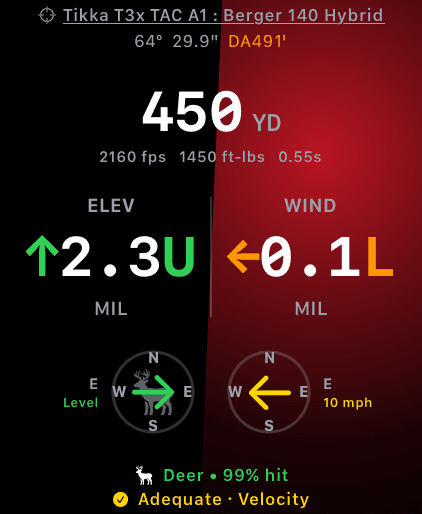
This is what has to survive the time between shots. In the dimmed always-on state the glow drops back and stops pulsing.
4. Leave Always On turned on
Settings → Display & Brightness → Always On.
Always On and Wake Duration solve different halves of the same problem. Wake Duration governs the full-brightness window. Always On decides what happens after it: dimmed and still readable, or black.
Under it, Show Apps chooses which apps stay visible while the display is dimmed rather than falling back to the watch face. Put Wrist Dope on that list and your holds are still there when you look down.
Wrist Dope handles the dimmed state deliberately. The cant glow drops to a lower opacity and freezes its pulse, so it stays glanceable without hammering the panel.
What it costs you: Battery again, and only some watches have it at all. Apple does not offer Always On on the Series 4 or on the SE 1st and 2nd generation, and it is unavailable in Low Power Mode and in Theater Mode. The supported watches page has the model-by-model list.
Permissions
What the app actually asks for, and why
5. Allow Motion & Fitness
Granted from the prompt on first launch. Later, per-app access is listed under Settings → Privacy & Security → Motion & Fitness.
It is worth being precise here, because the name suggests step counting and it is not that.
This permission is what gets you the barometer. Apple gates the altimeter behind motion access. That barometer is how Wrist Dope reads station pressure where you are standing instead of taking a sea-level number off a weather feed, and pressure is what drives density altitude and your elevation hold. Deny it and the Environment page falls back to weather-derived pressure corrected to your GPS altitude, or to a labeled 29.92 inHg default when nothing has arrived. The app will tell you which it is using rather than passing off a guess as a reading.
It is not what powers the level. Cant, inclination, and shot angle come from the accelerometer and gyroscope, which watchOS does not put behind a permission at all. Denying Motion & Fitness does not turn off the anti-cant level.
What it costs you: Nothing on the security or privacy side. Wrist Dope does no fitness tracking, and none of this data leaves your watch. If you would rather not grant it, you lose the on-site barometer and nothing else.
Location is a separate permission, and it is what supplies compass heading, altitude, and local weather. Without it there is no point-and-lock bearing and no shooting azimuth for Coriolis.
6. The passcode and wrist-detection trade
Settings → Passcode, on the watch. Or the Apple Watch app on iPhone: My Watch → Passcode.
Here is the problem this solves. Wrist Detection locks the watch the moment it comes off your wrist. Clamp the watch to a rifle and it has never been on your wrist, so it sits there locked, asking for a passcode every time you want a number. That is a genuinely bad experience behind a gun.
There are two ways to stop it, and they cost different amounts. We are not recommending either one. We are telling you what each does so the call is yours.
Turn off Wrist Detection
Settings → Passcode → Wrist Detection, off.
The watch keeps its passcode but stops locking and unlocking on its own. It is the smaller of the two changes.
Apple says this also:
- Prompts for your passcode every time you use Apple Pay.
- Stops activity measurement.
- Turns off heart rate tracking and its notifications.
- Disables the emergency call the watch places after detecting a hard fall.
Turn the passcode off entirely
Settings → Passcode → Turn Passcode Off.
The bigger hammer. With no passcode there is nothing to lock to, so the watch never locks.
Apple says this also:
- You cannot use Apple Pay, and every card you added to Wallet on the watch is removed. Turning the passcode back on does not bring them back; you add them again.
- You cannot unlock your Mac with the watch.
- Anyone who picks the watch up has everything on it, your notifications included.
If you make either change for a range day, put it back the same evening. Both are reversible in the same place: turn Wrist Detection back on, or tap Turn Passcode On and set the code again. Fall detection and heart-rate tracking come back with Wrist Detection. Wallet cards do not come back on their own after a passcode-off, so add them again when you turn the passcode back on.
Given that, Wrist Detection is the change most people should make and the passcode is the one most people should leave alone. A passcode prompt is a smaller problem than an empty Wallet.
What it costs you: Everything in the two lists above. Wrist Detection in particular is what a fall-detection emergency call depends on. If you hunt alone, weigh that against a passcode prompt.
In the field
Four smaller ones worth knowing
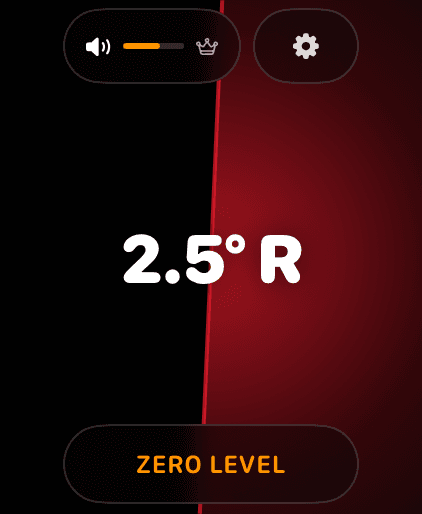
The LEVEL page. Zero it once against the mount you actually shoot.
Get back into the app in one move
Double-click the Digital Crown for the App Switcher and Wrist Dope is right there. Better still, put a complication on the face you shoot with. There are seven to choose from, including a mini range card centered on your dialed distance, and they read a saved snapshot rather than solving on the face, so they cost you nothing in battery. Live complications are part of the one-time Pro upgrade; without it they show an upgrade card instead of your dope.
Theater Mode for the walk in
Swipe up for Control Center and tap Theater Mode when you want the opposite of everything above: the screen stays dark on a wrist raise and the watch goes silent, with haptics still coming through. Turn it off before you settle in behind the rifle, since Always On does not work while it is on.
Water Lock in weather
Rain and wet gloves produce phantom taps. Water Lock in Control Center stops the screen responding to touch. Press and hold the Digital Crown to release it. The trade is obvious: no touch control at all until you do.
Rotate the app, not the mount
If the watch rides sideways on the rail, Wrist Dope has its own Mount Rotation setting in the app's Settings page (off, 90°, 180° or 270°), so the holds read upright without moving the mount. Zero the level after any mount change. The Screen Orientation guide covers the rotation itself, and the Scope Level guide covers rifle-mounted mode and the shot-angle side of it.
The screen still goes dark
- Return to Clock is still on the default. This is the one people miss. Wake Duration keeps the screen lit; Return to Clock is what decides whether Wrist Dope is still on it. Set it under
General, not under Display & Brightness. - Wrist Dope is not in the Always On app list.
Display & Brightness→Always On→Show Appsdecides which apps survive the dim. Without it there, the dimmed screen shows the watch face. - Low Power Mode is on. It disables Always On outright, and it is easy to leave on from the drive out.
- The watch is locking, not sleeping. A passcode prompt is not a dark screen. That is Wrist Detection, and it is the trade in section 6.
Every menu path on this page was checked against Apple's current Apple Watch User Guide for watchOS 26, and the consequences are Apple's own: turn on and wake, Always On, lock or unlock, and Control Center. Apple moves settings between releases, so if a menu is not where we said it was, tell us and we will fix the page.
The display
Keeping your dope on the glass
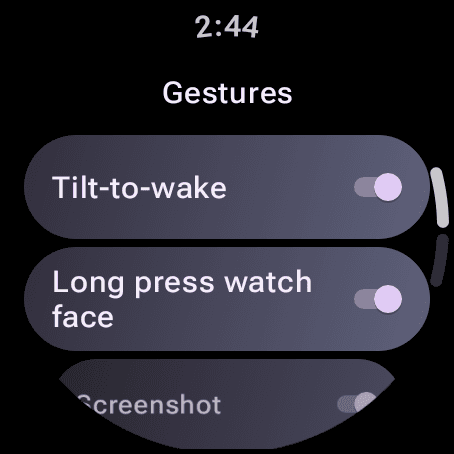
Stock Wear OS, Settings, Gestures. Your watch may word it differently.
1. Turn off tilt to wake
Pixel Watch: Settings → Gestures → Tilt-to-wake, off. Galaxy Watch: Settings → Display → Raise wrist to wake, off.
On a rifle-mounted watch this is pure noise. Every time you shoulder the gun, settle into position or lower the muzzle, the watch reads it as a wrist raise and lights the screen. In low light that is a lantern next to your cheek weld.
What it costs you: Off the gun, checking the time takes a tap or a press. Most people turn it back on when they pack up.
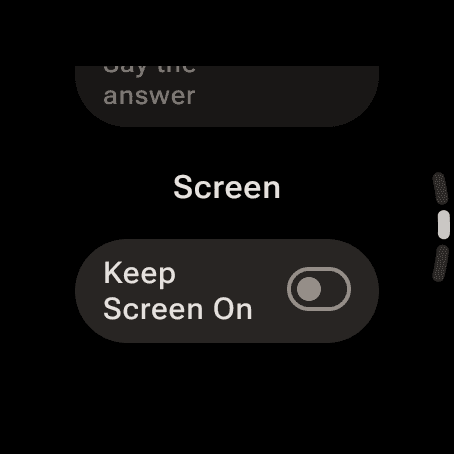
Wrist Dope's own Settings, Screen. It starts off.
2. Turn on Keep Screen On in Wrist Dope
Wrist Dope on the watch: Settings → Screen → Keep Screen On.
This is the one an Apple Watch cannot do. Wear OS lets an app hold its own screen on, and this switch asks it to. With it on, Live Fire, the Range Card and an armed match stay lit for as long as they are in front. It starts off.
A few things hold the screen whatever the switch says: the Level page, Live Fire while a voice session is listening, and the stage timer while it is armed or running.
What it costs you: Battery. A screen held at full brightness is the most expensive thing on this list. Start the day charged.
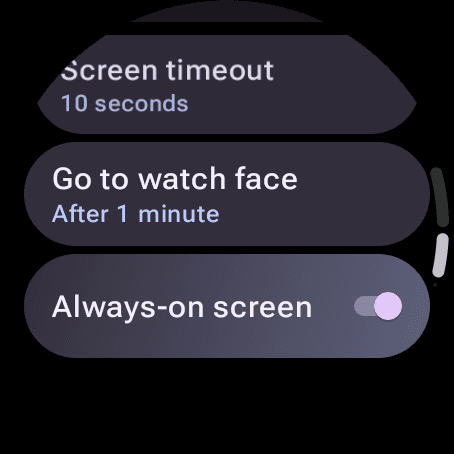
Stock Wear OS, Settings, Display: the timeout, Go to watch face, Always-on screen.
3. Leave the always-on display on
Pixel Watch: Settings → Display → Always-on Display. Galaxy Watch: Settings → Display → Always On Display.
When the screen does time out, this decides what is left: a dimmed face, or black. With it on, Live Fire stays up as a dark ambient face. The range and both holds keep full contrast, the cant glow switches off, and the conditions line shows a dash, because a reading that can be a minute old is not one to shoot on.
If you leave Keep Screen On off, a longer Screen timeout (under Display on both) buys more full-brightness time between shots. Some watches, stock Wear OS among them, also list Go to watch face there, which decides how soon the watch gives up on the app and shows the face.
What it costs you: Battery again. Battery saver can also turn the always-on display off without asking.
Permissions
What the app actually asks for, and why
4. Allow notifications
Asked the first time the app needs it, never at launch.
Wear OS sends you back to the watch face after a while, even with an app open. While Live Fire, the Stage card or the stage timer is up, Wrist Dope posts an ongoing activity, the same thing a maps app uses, to ask the watch to keep it in front. That needs the notification permission.
Say no and nothing breaks. Nothing is posted, and the watch goes back to the face on its own schedule.
What it costs you: A small chip, such as Live Fire, can show on the watch face while the app is up. Nothing on the privacy side.
5. The rest, asked when you first use them
- Location brings in the weather and your altitude. Without it, ENV shows
Location off · tap to enablewhere it matters. - Microphone is for voice mode and Start on beep, and it is only open while one of them is on.
- Bluetooth (Nearby devices, on newer watches) is for a wind meter.
There is no motion permission to grant on Wear. The barometer, the compass and the level need none, so a denial anywhere above never turns off the anti-cant level.
In the field
Two smaller ones worth knowing
Put the Range Card one swipe away
The Range Card tile sits one swipe from the watch face and shows eight ranges for the active load. The six complications put a hold or your load on the face itself. Complications covers both.
No Mount Rotation on Wear
Wear OS has no Mount Rotation, by design, so mount the watch the way you want to read it, and zero the level after any mount change. The Scope Level guide covers rifle-mounted mode.
The screen still goes dark
- Keep Screen On is still off. It starts off. Without it the watch dims on its own timeout, which is usually short.
- It went back to the watch face. Notifications are off for Wrist Dope, so it cannot post the ongoing activity that keeps it in front. Turn them on for the app in the watch's settings.
- The dimmed screen is black, not Live Fire. The always-on display is off, or battery saver turned it off.
Menu paths checked against Google's Pixel Watch help and Samsung's Galaxy Watch display guide. Watch makers move and rename settings, so if a menu is not where we said it was, tell us and we will fix the page.
Still stuck? support@wristdope.com